
Rubrics
A rubric is a set of domains, criteria, and scoring levels that’s used by our AI system to grade and give feedback to learners on their assessments. Our AI grader takes into consideration the scenario context, the learner’s transcript and assessment and plan, and your rubric in order to generate personalized feedback for each learner.
Creating or uploading a rubric
Section titled “Creating or uploading a rubric”You can create a new rubric:
- From within the scenario creation form while you’re creating a scenario, or
- From the “My scenarios” section of the dashboard.
There are two ways to create a rubric:
- Upload a PDF: We recommend using a rubric you already have, like an OSCE grading rubric. Upload a PDF of your rubric and we’ll automatically convert it into the standard, editable format used by our platform. If your rubric is saved as a Word file or other format, save it as a PDF before uploading.
- Start from scratch: If you don’t already have a rubric, you can create a new one using the rubric editor built into our platform. Choose a rubric style:
- Checklist: A checklist style rubric typically has a list of very specific criteria that are either “Done” or “Not done”.
- Performance levels: These rubrics typically have higher-level domains and sub-domains with 4+ performance levels such as “Below”, “Approaching”, “Meets”, “Exceeds”.
“Use scoring” checkbox: Choose whether you want the AI-generated feedback to assign a score for each criterion and include a total score at the top.
Saved rubrics
Section titled “Saved rubrics”When creating a rubric from within a scenario, you’ll get to choose whether to save the rubric to “My rubrics” to use it again, or to save it just for that scenario.
Sometimes rubrics are highly specific to one scenario, and won’t be reused. In this case, saving it only with the scenario makes sense.
Other rubrics are higher-level and designed to be used more broadly. Save these rubrics to “My rubrics” to make them easy to reuse.
Using rubrics in scenarios/assessments
Section titled “Using rubrics in scenarios/assessments”During the process of creating a scenario, you’ll get to choose the rubrics to use when generating feedback for learners. Rubrics that are highly specific to one scenario should be added at this step. All other rubrics can either be added at this step or later when assigning to a course. The rubrics bundled with a scenario will be the rubrics used to generate feedback in preview mode.
When assigning a scenario to an assessment, you’ll get another opportunity to review the list of rubrics and make changes just for that course. For example, you might reuse the same scenario in multiple courses, but with a different rubric each time.
You can include as many rubrics as you want, and we’ll generate feedback based on each.
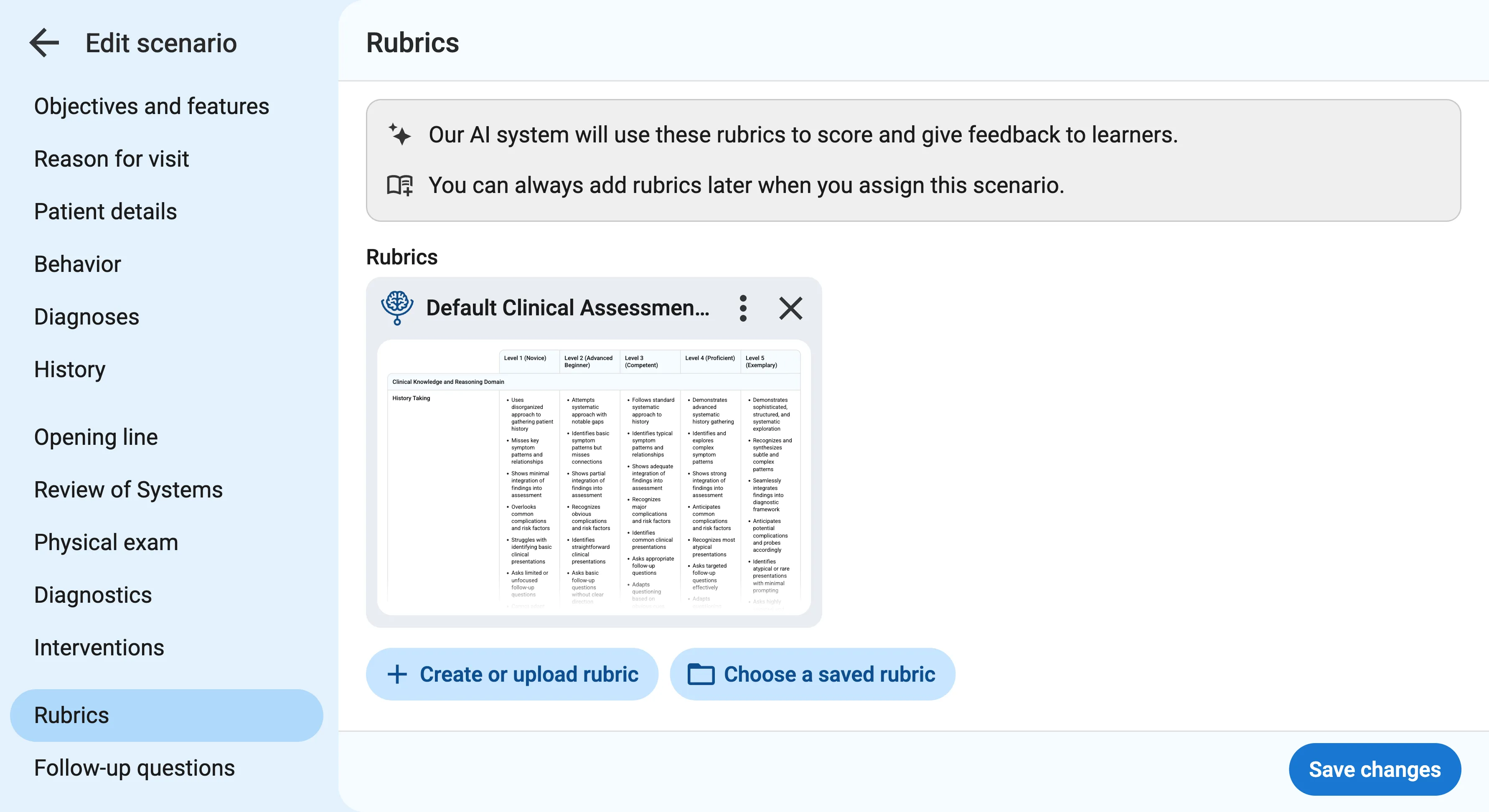
If you don’t have a rubric in mind, you can use the Default Clinical Assessment Rubric which will appear as a suggestion for applicable scenarios.
The rubrics you choose are used by our AI system to generate personalized feedback for each learner.