
Getting started
This guide walks you through setting up your Sapient Clinician account, creating your first case, and assigning it to students.
1. Create your account
Section titled “1. Create your account”To get started, visit https://app.sapientclinician.com/login and sign in with your institution email address.
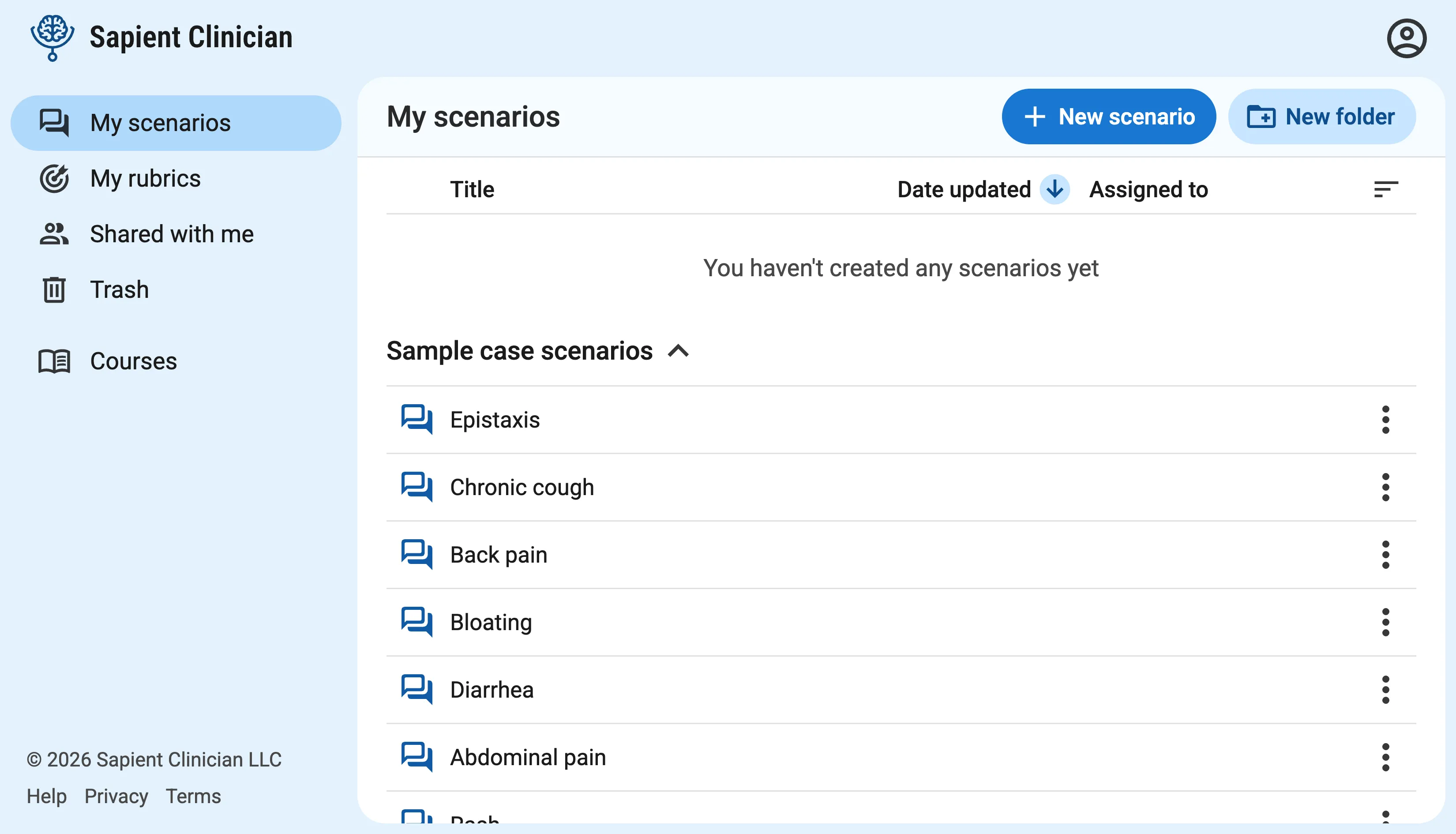
Once you finish creating your account, you’ll land in the main Sapient Clinician dashboard. On the left you’ll see pages for your scenarios, rubrics, shared files, and courses, which we’ll walk you through below.
2. Create your first case scenario
Section titled “2. Create your first case scenario”Click the New scenario button at the top right of the page to create your first case scenario.
Our AI-assisted scenario creation form will guide you through the steps, starting with case objectives and reason for visit, patient details, and then moving into subjective (history and review of systems), objective (physical exam and diagnostics), and finally rubrics.
The form is designed to collect all the relevant details that the AI-powered patient actor needs to act out the scenario.
First half of the form
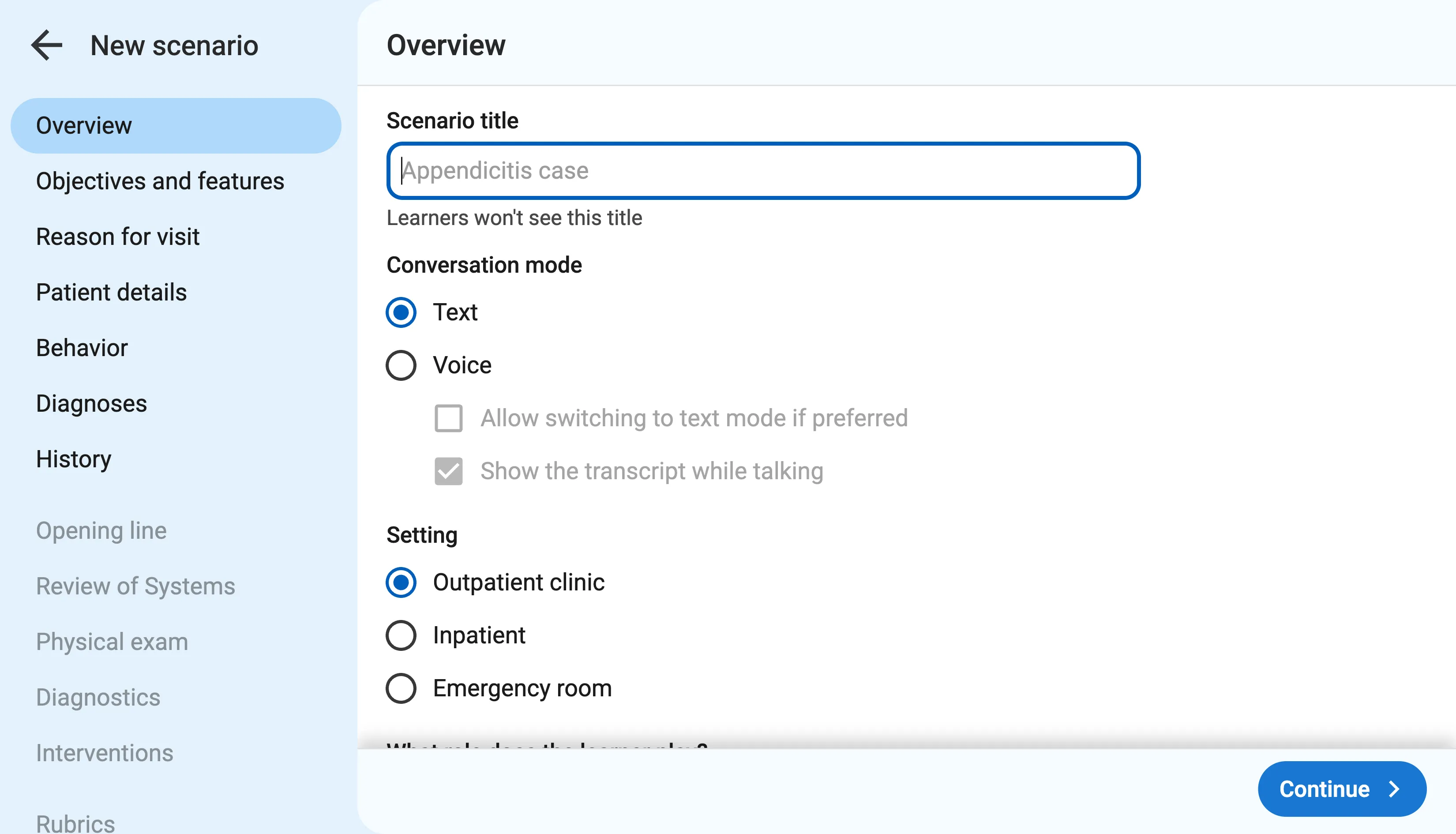
Section titled “First half of the form”During the first half of the form, you’ll enter:
- A scenario title
- Conversation mode (Text or Voice)
- Case objectives (either to diagnose the patient or have a focused conversation) and which features to enable
- Reason for visit, chief concern, and HPI
- Patient demographic details
- Diagnosis and differentials
- Patient history
The patient actor will rephrase the chief concern and history in their own words.
You only need to specify as much detail as is necessary. For any details left unspecified, the patient actor will make up benign answers that align with the diagnosis.
Second half of the form
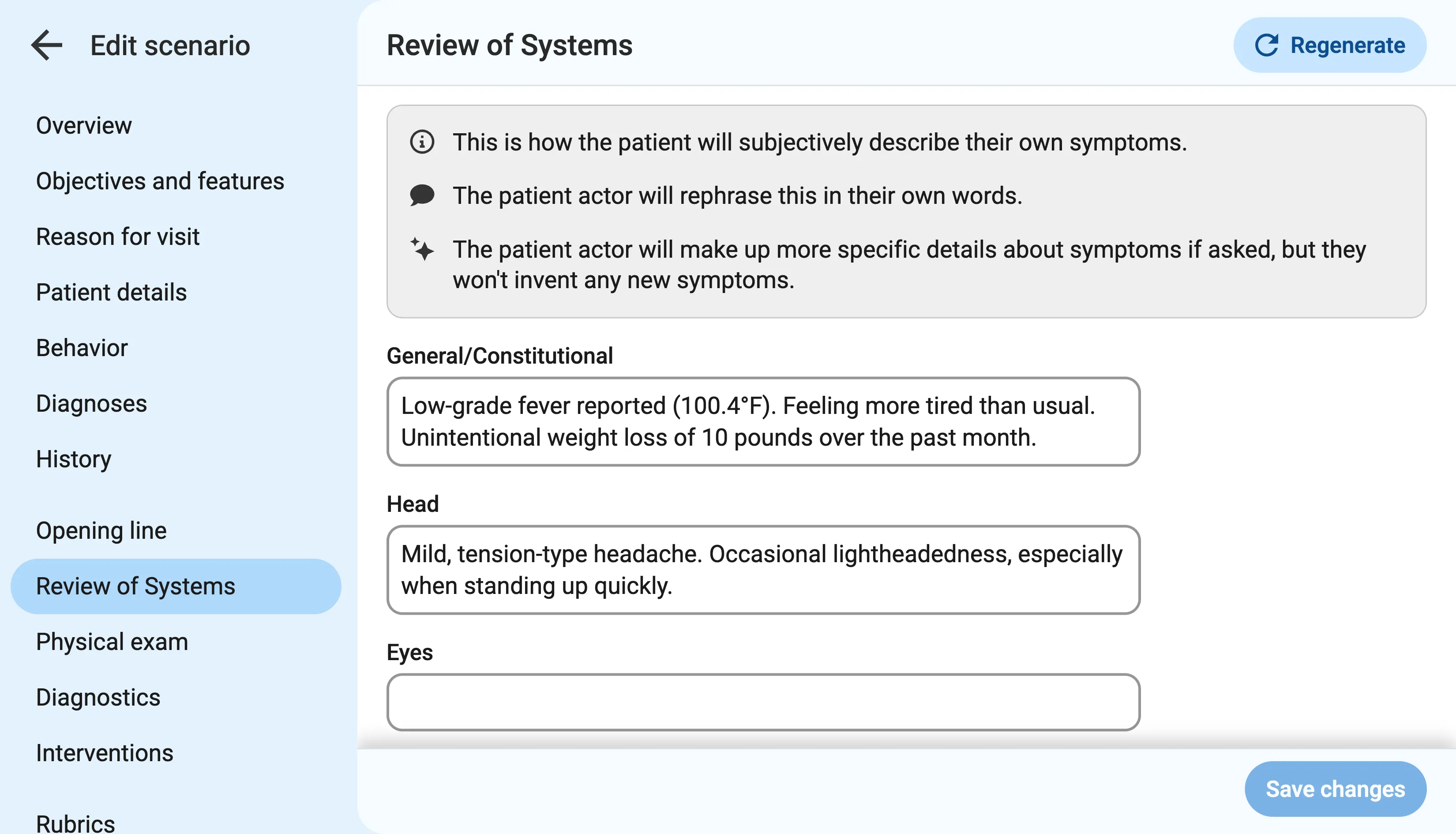
Section titled “Second half of the form”Based on the diagnosis and other details entered into the first half of the form, our AI system will automatically fill out the second half of the form for you, generating an opening line, review of systems, physical exam findings, and diagnostic results, step by step. At each step, you can review and make changes as needed to align with your vision for the case.
Adding a rubric
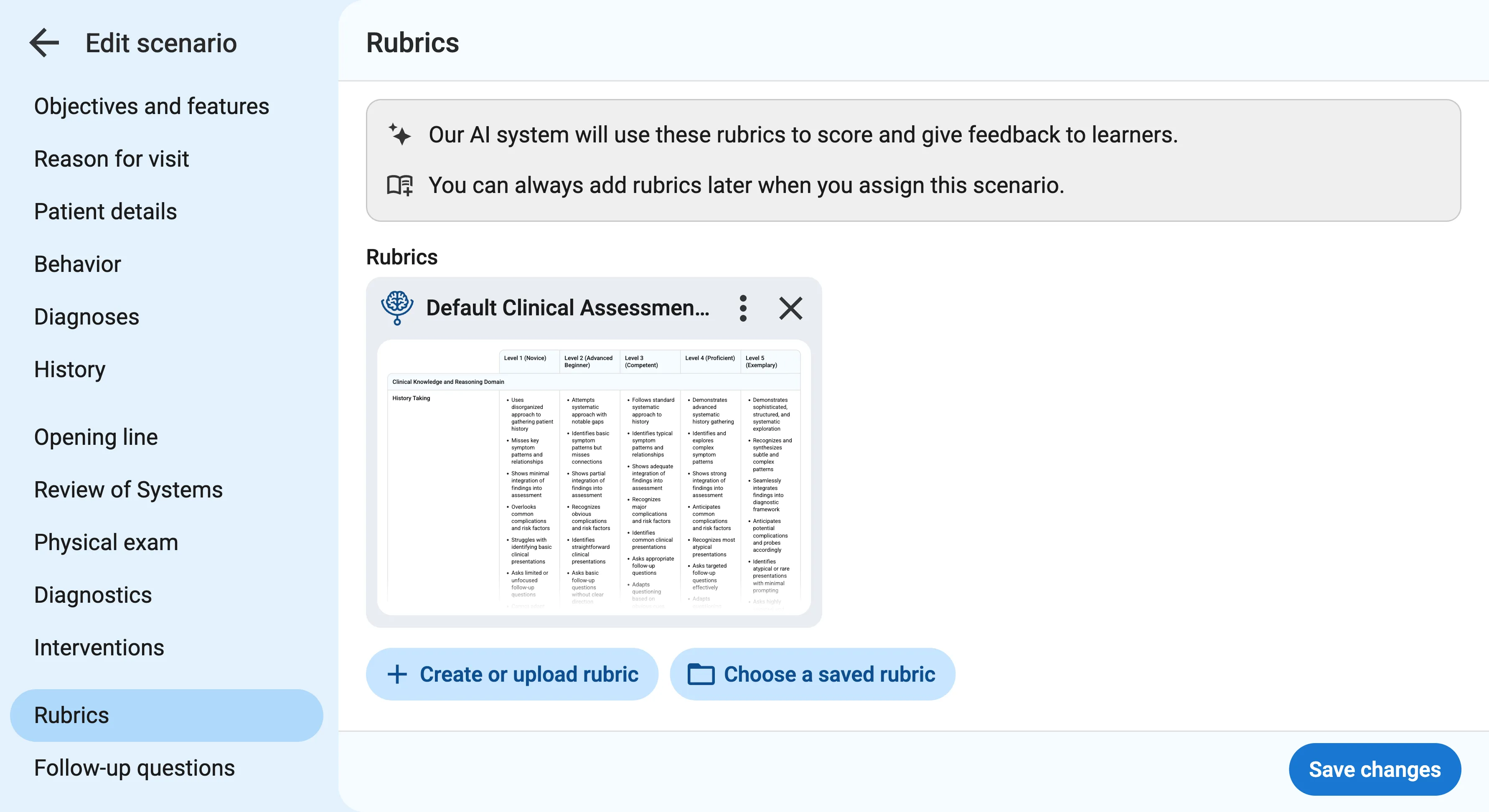
Section titled “Adding a rubric”The last step of scenario creation is to choose the rubric that our AI system will use to score and give feedback to learners.
If you already have an OSCE rubric saved as a PDF, you can upload it. Otherwise, feel free to use our Default Clinical Assessment Rubric for now. You can always change the rubrics later.
3. Previewing your scenario
Section titled “3. Previewing your scenario”After creating your first scenario, click the “Preview” button to run it. Try interacting with the case by asking questions and ordering labs to make sure that the case is working as you intended. You can always edit the scenario to make further changes and then preview again.
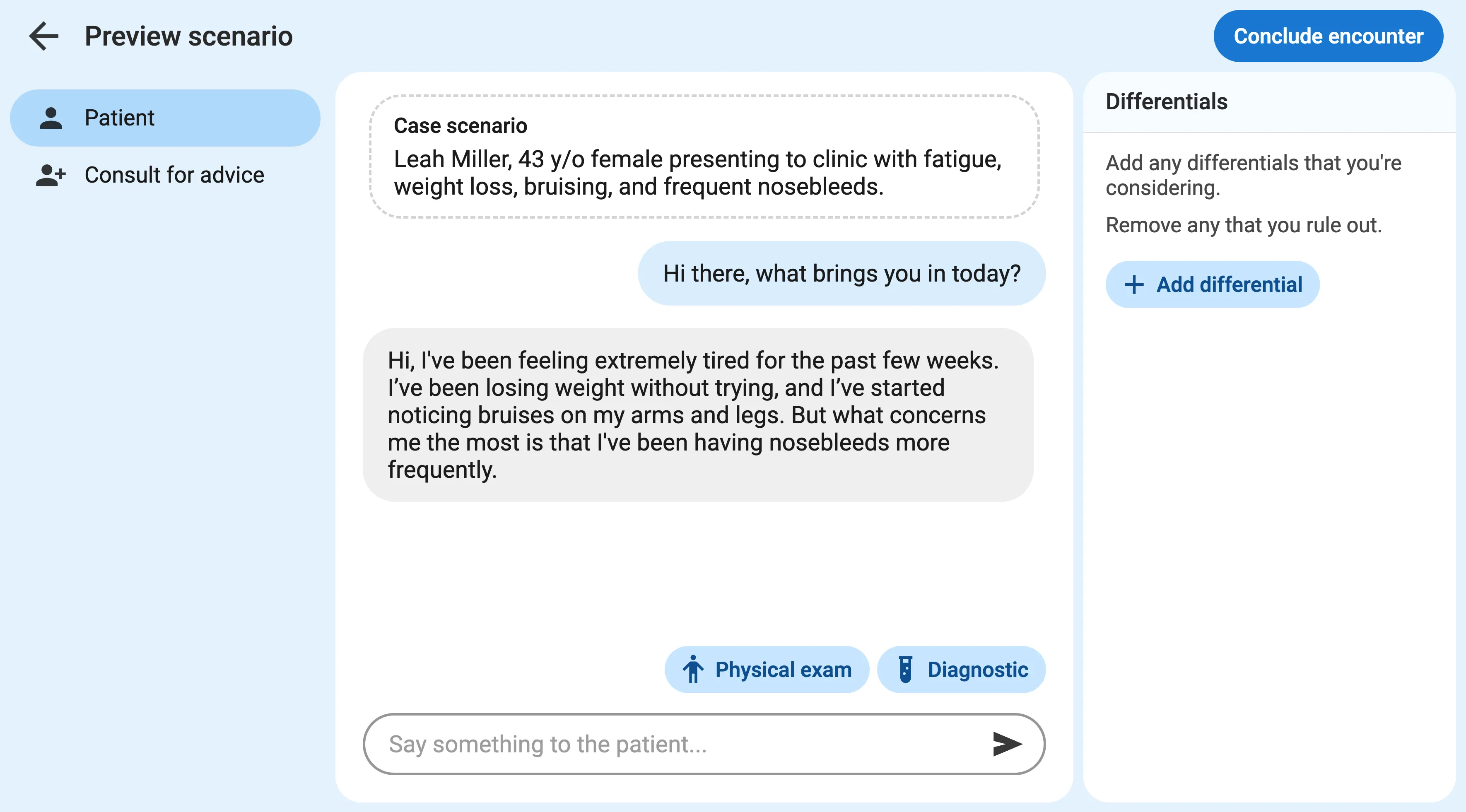
Preview mode is designed to let you go as far as you want, whether it’s to try out just a few questions or complete the case and get feedback.
4. Creating a course
Section titled “4. Creating a course”In order to assign case scenarios to your students, you’ll need to create a course. From the main dashboard, click the Courses section on the left, and then click New course to create one.
Feedback mode: When students complete a case, our AI system will use your rubric to automatically generate personalized feedback. Choose whether you want to review this feedback before it’s released to students, or if you want students to get it immediately. Learn more about this choice.
5. Assigning a case
Section titled “5. Assigning a case”Once you’ve created a course, you’ll find yourself on the “Assessments” tab.
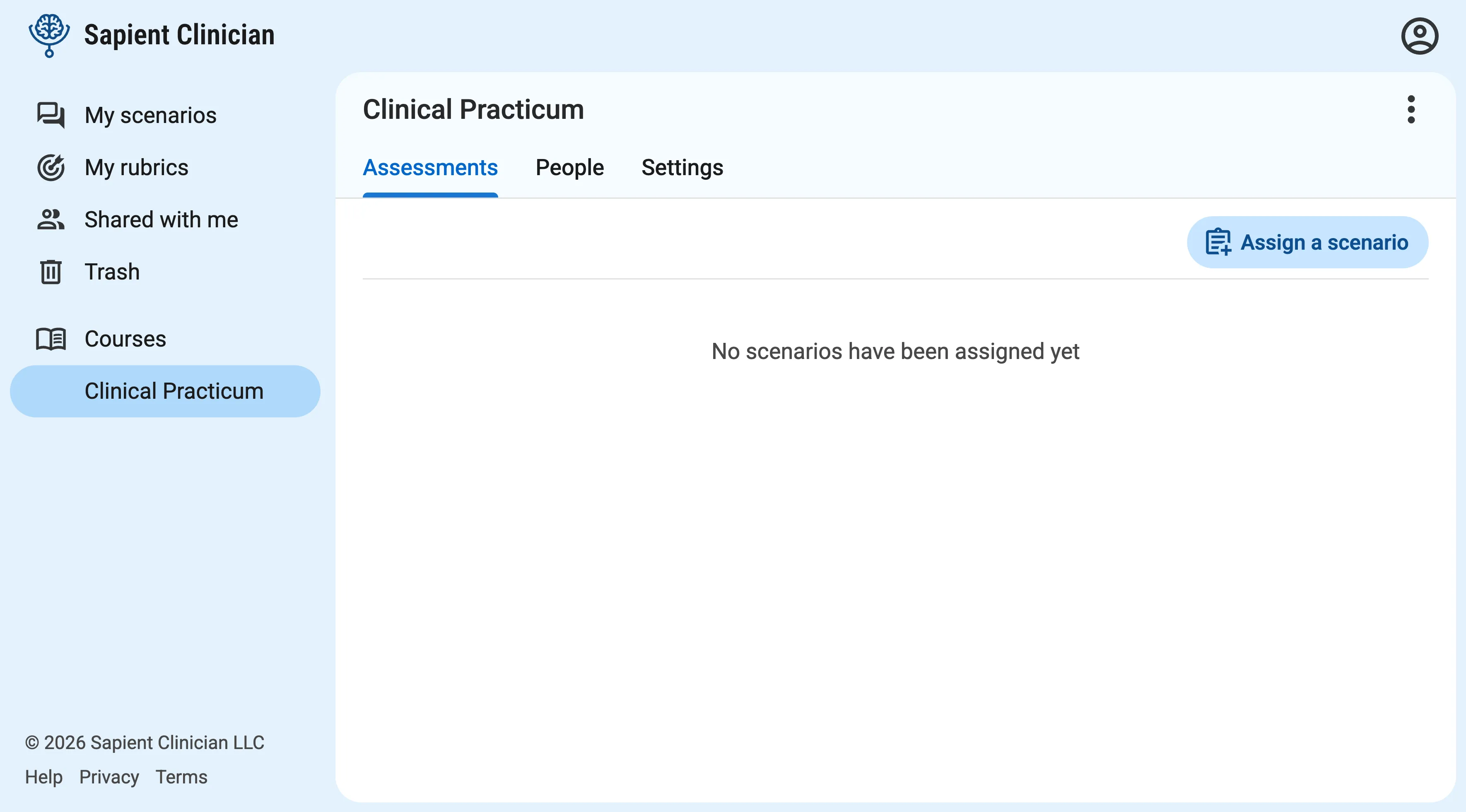
Click the Assign a scenario button to assign a scenario to the course. An assigned scenario is called an “assessment”.
When creating an assessment, you can set a title that’s different from the scenario title, write custom instructions, and set a due date.
You’ll also get an opportunity to review the rubrics and change them if you want. For example, you might use the same scenario but with different rubrics for different courses.
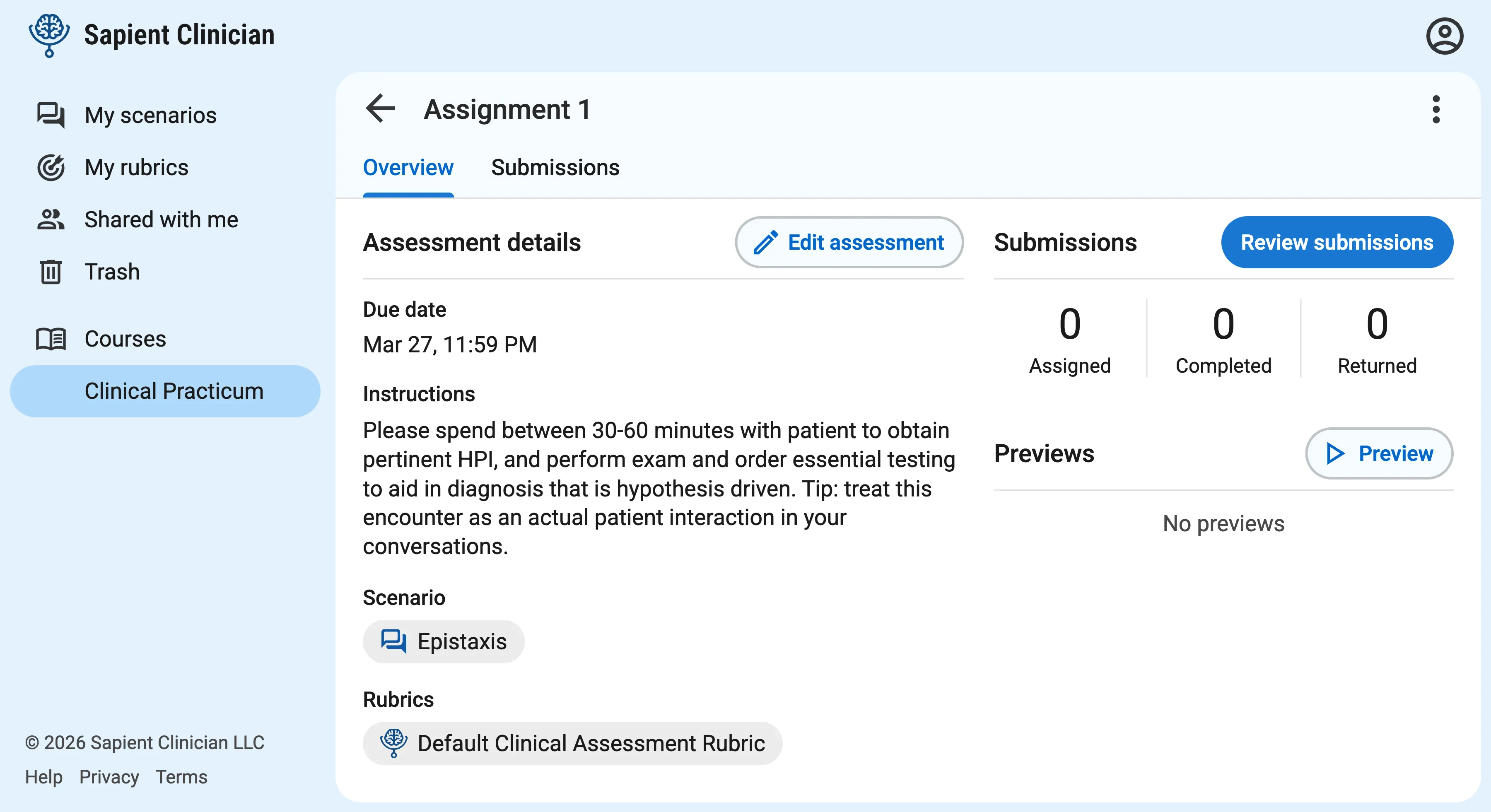
Once you’ve created an assessment, click on it to visit the assessment overview page. On the right side of this page, you’ll see submission statistics, and you can click on the Review submissions button to review your students’ transcripts and feedback.
6. Inviting students and co-instructors
Section titled “6. Inviting students and co-instructors”Now that you’ve created a course and assigned a scenario, the only thing missing is the students!
Back on the course page, click on the “People” tab to view all the students and instructors in the course.
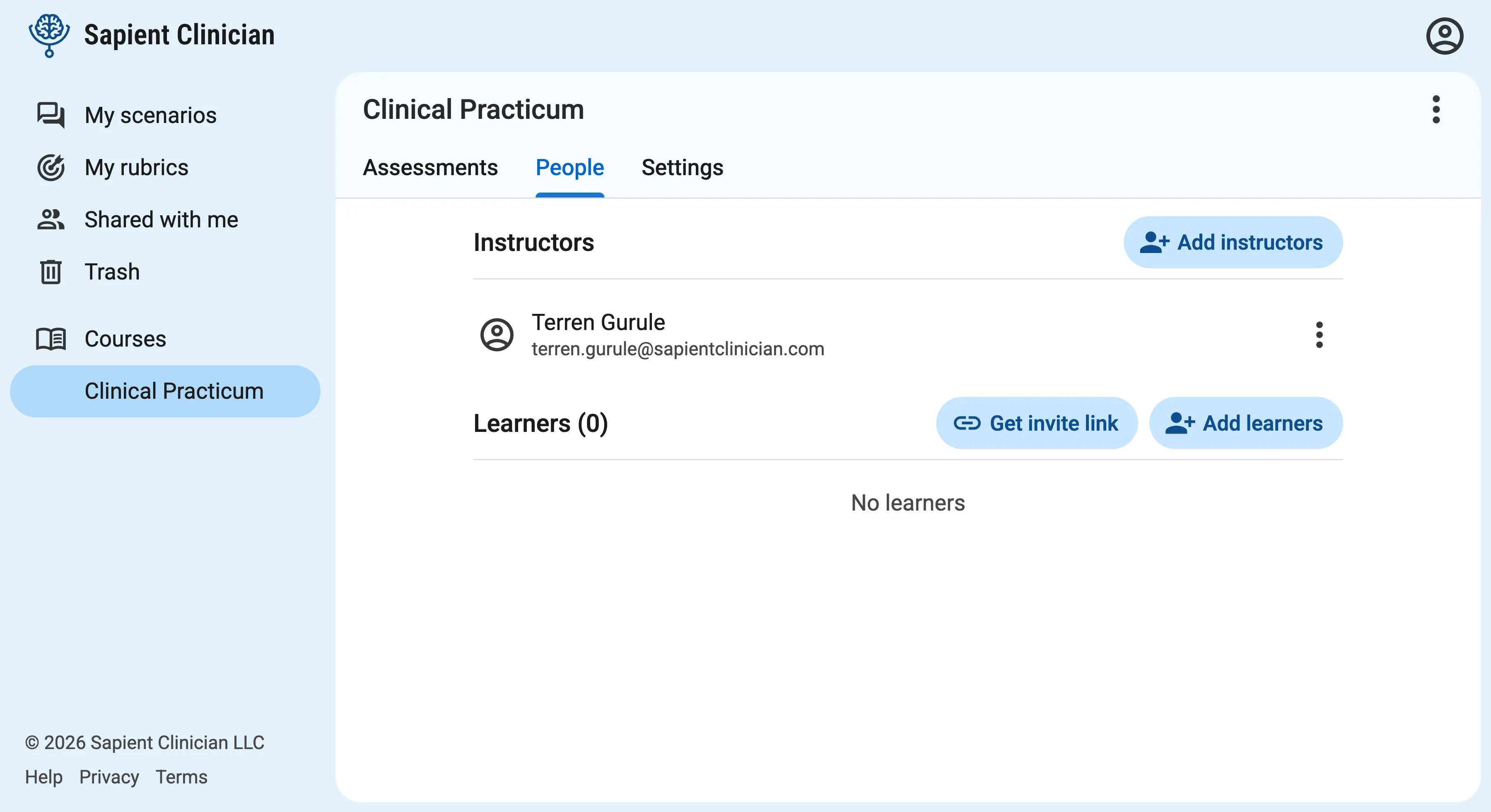
There are two ways to invite students to your course:
- Invite via link: Click on the Get invite link button to get a link that you can send to students. Clicking the link will prompt them to sign in or create their account, and then will automatically add them to the course.
- Invite via email: Click the Add learners button to add students manually with a list of email addresses. Students will get an email from Sapient Clinician to notify them that they’ve been added to a course, with a button to sign in or create their account.
From this page you can also add co-instructors to your course. Co-instructors can edit the course, assign scenarios, and view student submissions.
Next steps
Section titled “Next steps”Congratulations on getting started with Sapient Clinician! To continue learning, explore some of the articles below: