
Courses
Courses are how you assign scenarios to learners.
A course contains:
- Instructors
- Learners
- Assessments (assigned scenarios)
You can use courses to keep things organized in whatever way makes sense for your program. For example, a course may represent an entire cohort of students, a specific class or rotation, a lab or skills group, or any other grouping you want to manage together. Avoid creating multiple courses that contain the same set of learners, as this is redundant.
Creating a course
Section titled “Creating a course”From the main dashboard, click the “Courses” section on the left, and then click the New course button at the top.
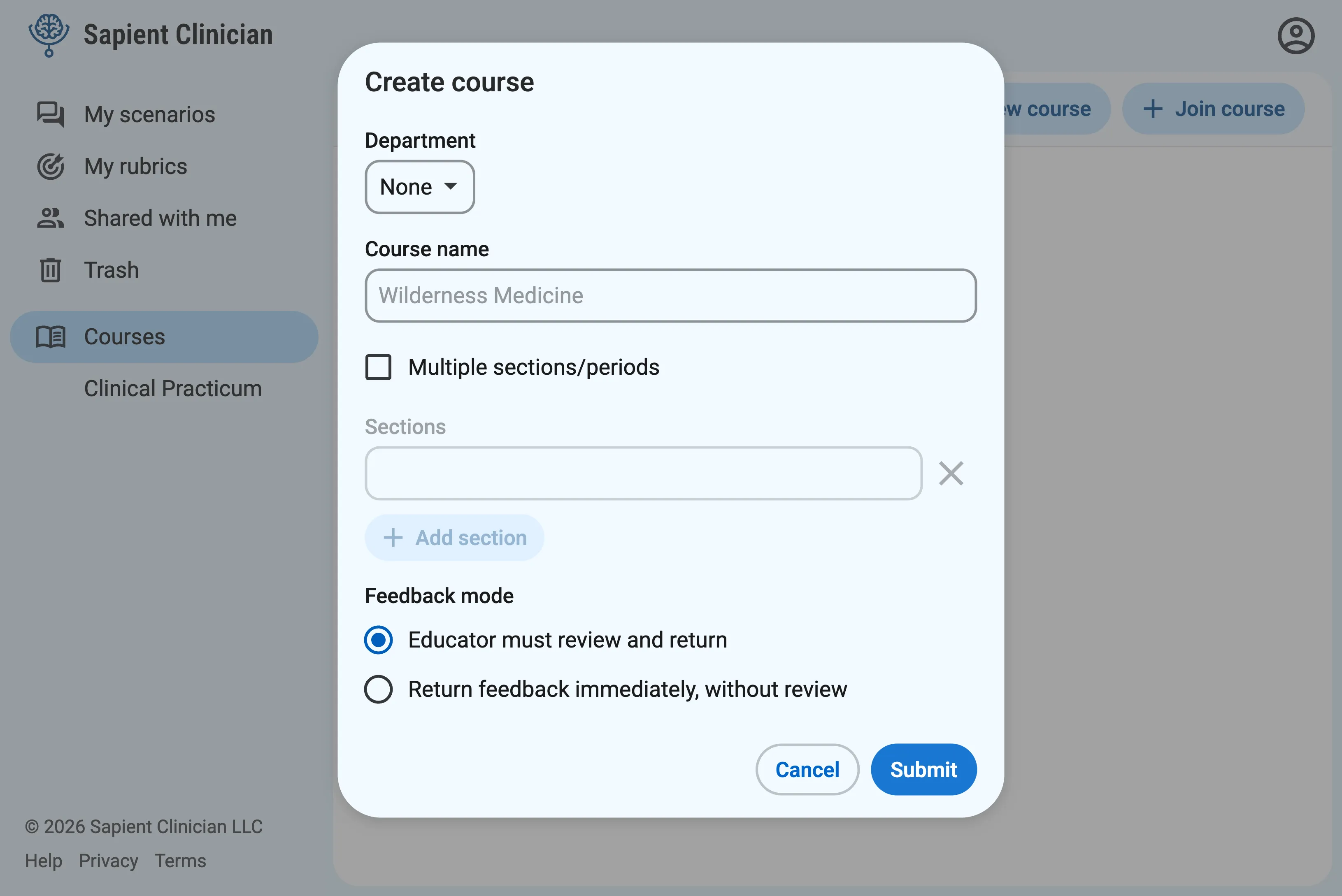
There are several options to pick when creating a new course. You can change these later.
Department: If applicable, you can create your course under a specific department within your organization. Department managers will be able to view and manage the course.
Course name: Helps you and your learners identify the course. You may wish to include the program year or course number.
Multiple sections/periods: If you have multiple sections of the same course, choose this option to assign learners to different sections. You’ll get a unique join code/link for each section. All sections will see the same list of assessments.
Feedback mode: When students complete a case, our AI system will use your rubric to automatically generate personalized feedback. Choose whether you want to review this feedback before it’s released to students, or if you want students to get it immediately. Learn more about this choice.
Inviting learners and co-instructors
Section titled “Inviting learners and co-instructors”You can view and manage the learners and instructors in a course from the “People” tab.
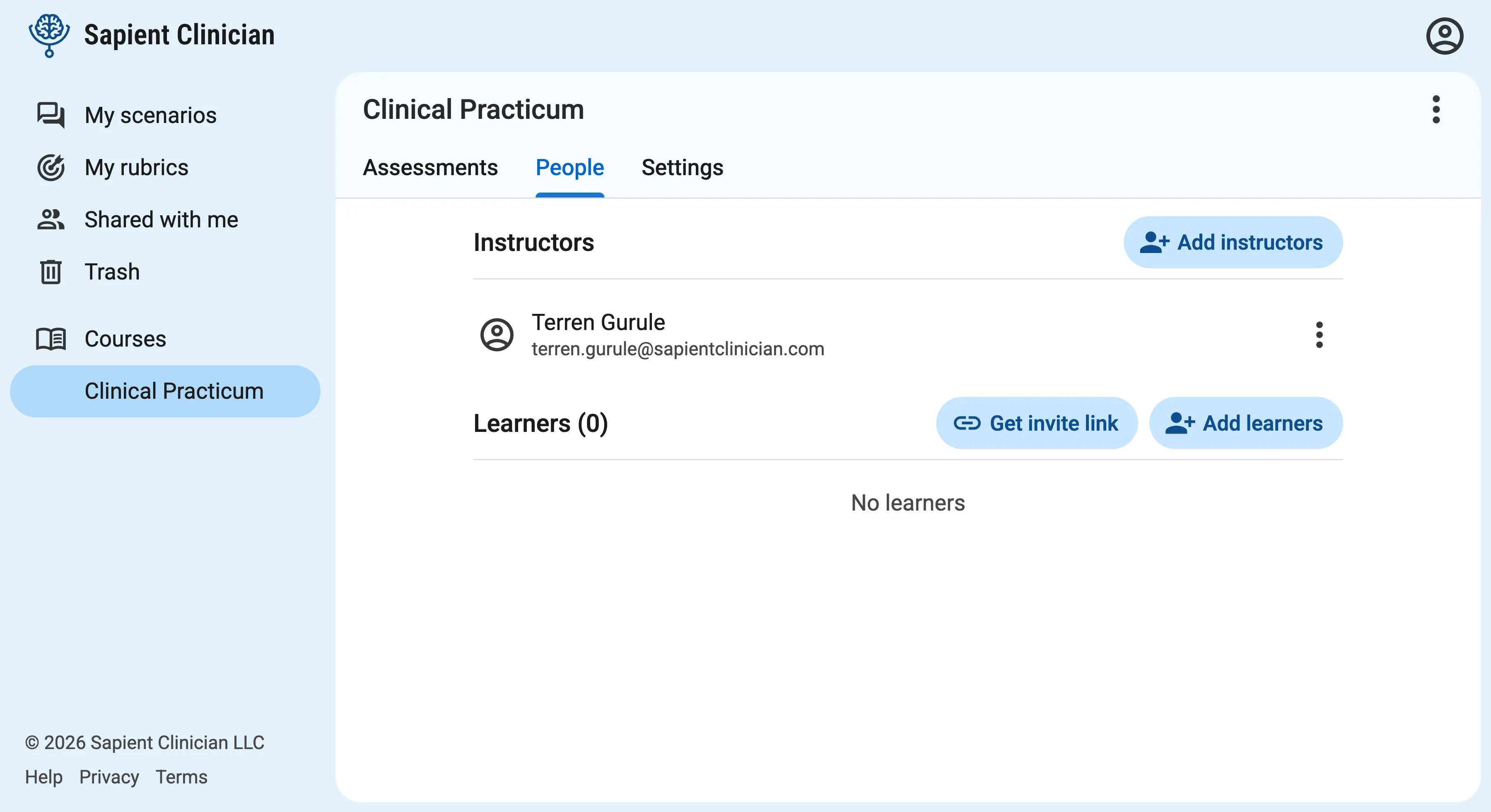
There are two ways to invite learners to a course:
- Invite via link: Click on the Get invite link button to get a link that you can send to learners. Clicking the link will prompt them to sign in or create their account, and then will automatically add them to the course.
- Invite via email: Click the Add learners button to add learners manually with a list of email addresses. Learners will get an email from Sapient Clinician to notify them that they’ve been added to a course, with a button to sign in or create their account.
You can add co-instructors to a course by clicking the Add instructors button. Co-instructors have full access to the course — they can edit course settings, create and manage assessments, and view student submissions.
The first time you add a co-instructor, we’ll ask if you want to automatically share edit access to all the scenario and rubric files you use in the course. Learn more about this choice.
Assigning scenarios
Section titled “Assigning scenarios”Assigned scenarios are called assessments.