Sharing files and folders
Share files to allow your colleagues to make edits or re-use the same scenarios or rubrics. This guide walks you through the ways to share individual files or entire folders with others.
Sharing files on Sapient Clinician works just like Google Drive or OneDrive, so if you’re already familiar with one of those platforms, then you already know how to share files on Sapient Clinician!
How to share
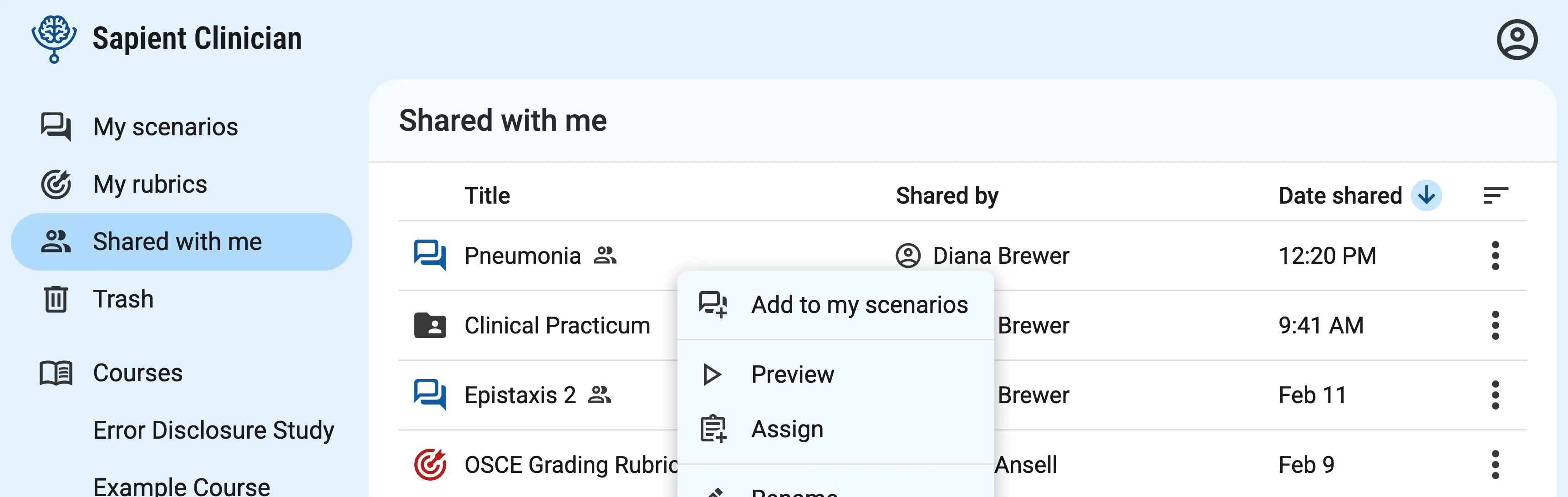
Section titled “How to share”Files: When viewing a list of files, right-click for the “Share” option. When you click to open a scenario or rubric, you’ll also find the Share button at the top right.
Folders: You can also share folders by right-clicking them, or when the folder is open, by clicking the name of the folder in the title bar.
Clicking “Share” will open the sharing window. Here you can add your colleagues and manage who has access to the file.
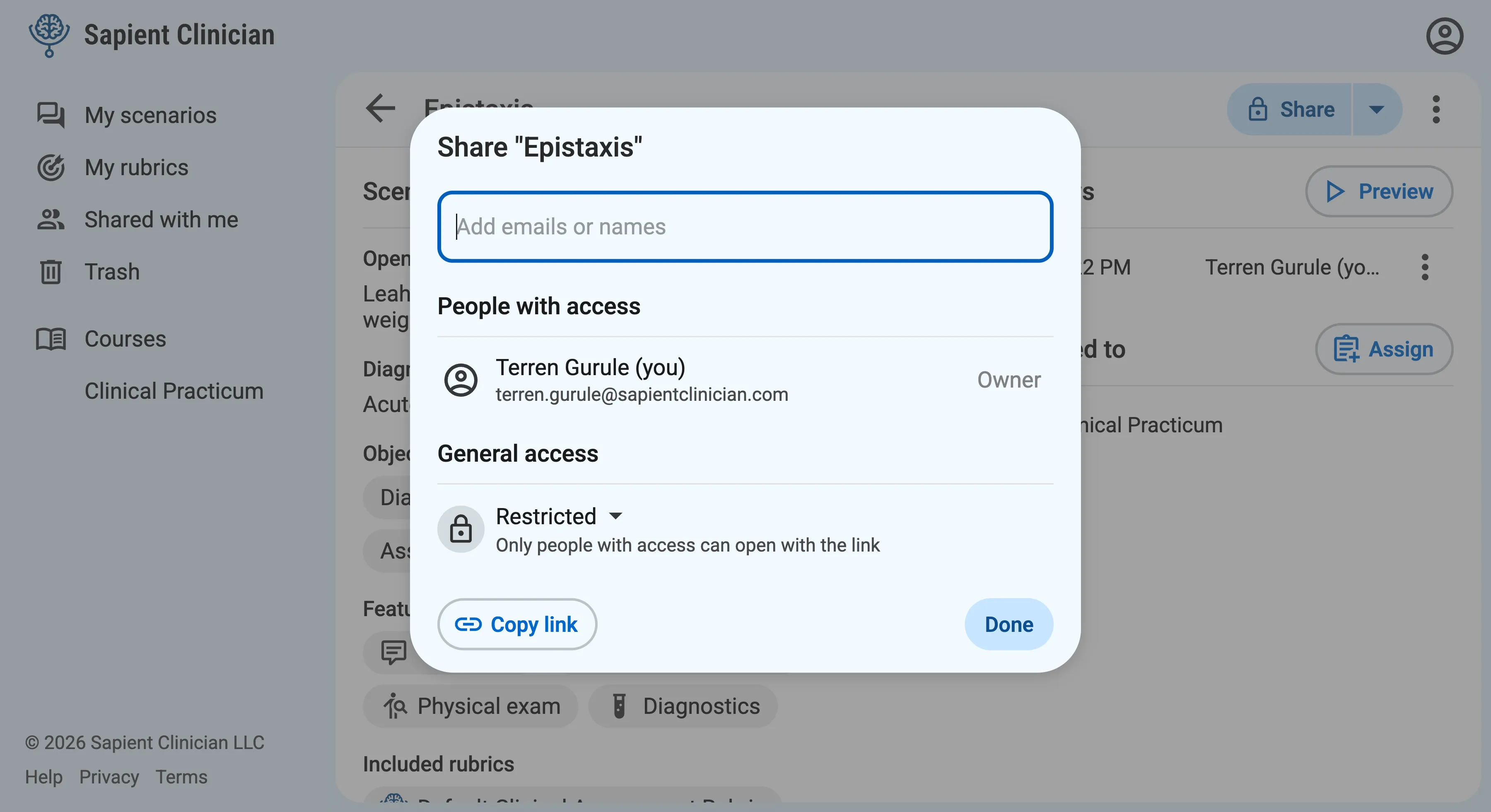
You can share with specific people, or you can copy a link to share with many people at once.
Sharing with specific people
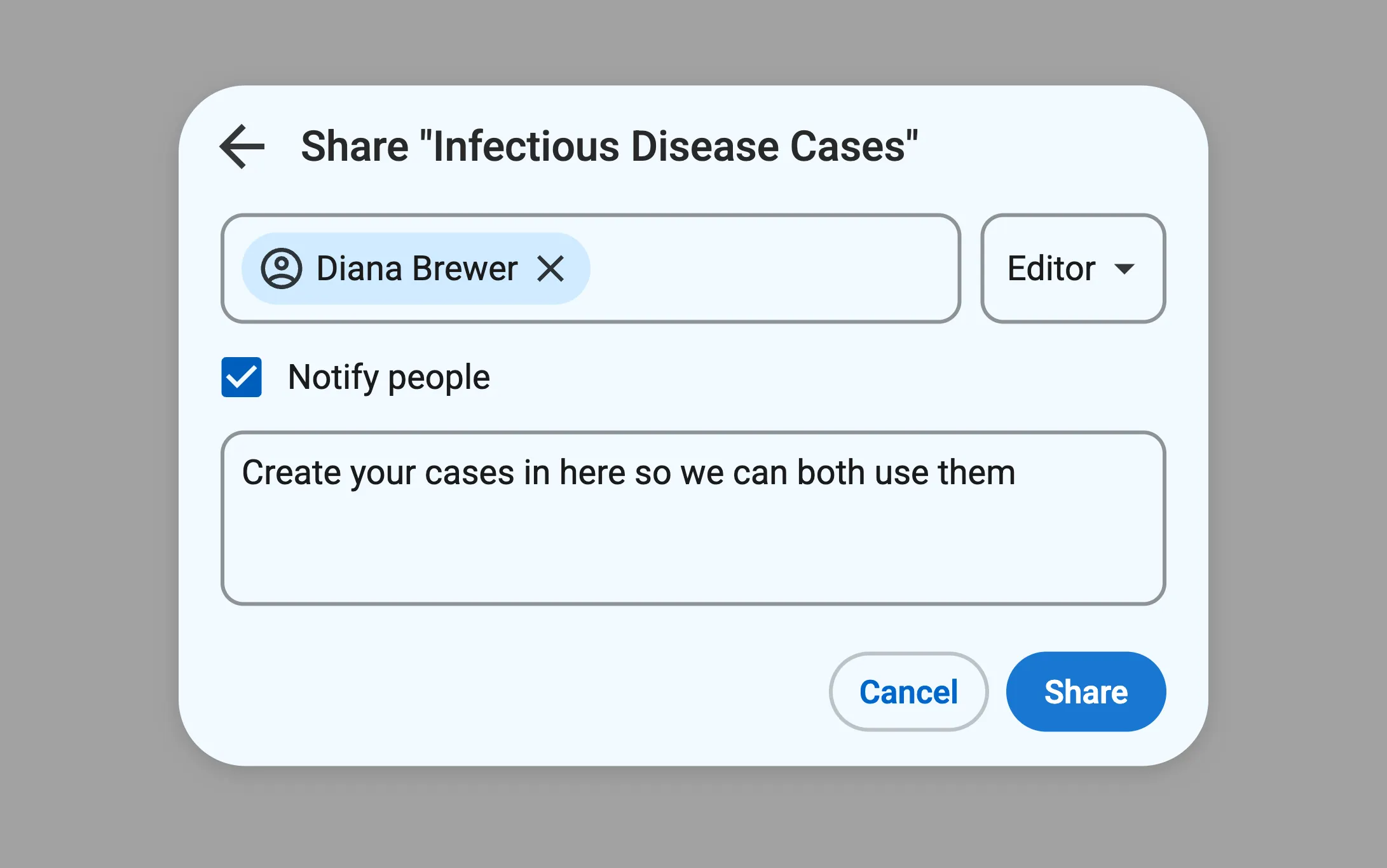
Section titled “Sharing with specific people”To share with specific people, simply type their names or email addresses into the box.
If the person you want to share with is in your organization and already has a Sapient Clinician account, then you can type their name into the box.
If they don’t come up by name, type their email address instead and we’ll email them a link to create their account and view the file.
“Viewer” vs “Editor”
Section titled ““Viewer” vs “Editor””When you share a file or folder with someone, you can choose whether to make them a “viewer” or an “editor”. Here’s the difference:
Viewer: Viewers can view, use, and make a copy of files. Viewers of a scenario can run a new preview session which will appear on the file for everyone. Viewers can use a scenario or rubric in their own courses. Viewers cannot share with additional people or make edits.
Editor: Editors can additionally rename and edit files, and manage sharing such as adding or removing people. For folders, editors can add, rearrange, and remove files. Editors cannot delete files — only the owner can.
If you just want to send someone files without letting them edit, choose “viewer”. If you want to collaborate, choose “editor” to allow them to edit files or add to a folder.
Sharing rubrics too
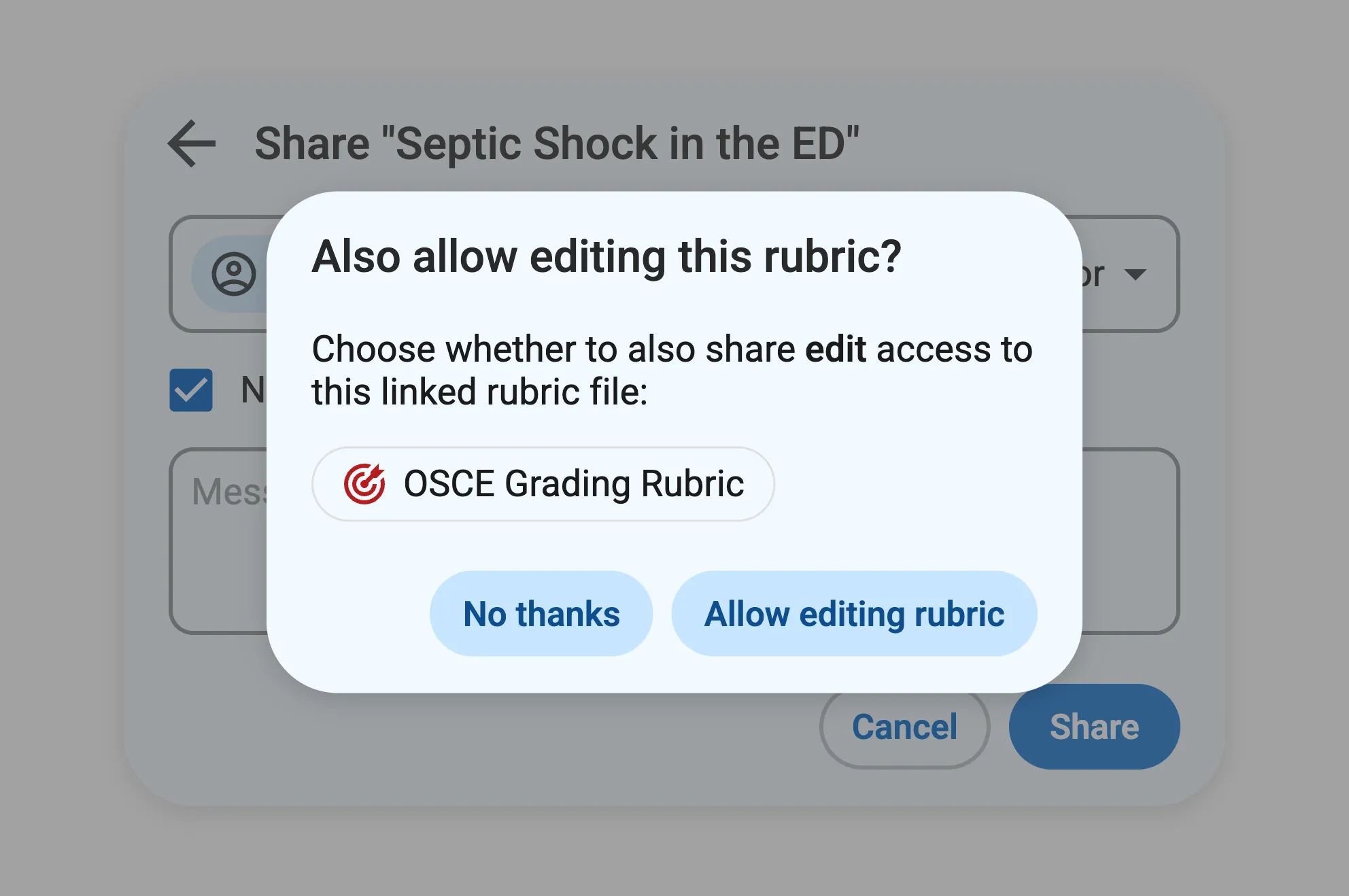
Section titled “Sharing rubrics too”Sometimes when you share edit access to a scenario that includes rubrics, we’ll ask if you want to share edit access for the rubrics too. This happens when a rubric file and scenario file are linked, meaning that editing the rubric in one place will update it in both places. Only people with access to the original rubric file can edit it, so this prompt is asking if you want them to be able to. Learn what it means for files to be linked vs unlinked.
Creating a shared link
Section titled “Creating a shared link”Sometimes you want to share with lots of people at once, or you want to create a link that works for anyone who clicks it.
At the bottom of the sharing window, you can choose between:
- Restricted: Only people with access can open with the link.
- Your organization: Anyone in your organization with the link can open (sign in required).
- Anyone with the link: Anyone on the internet with the link can open (as long as they have an account).
You can also choose whether to allow viewing or editing. We caution against allowing anyone to edit.
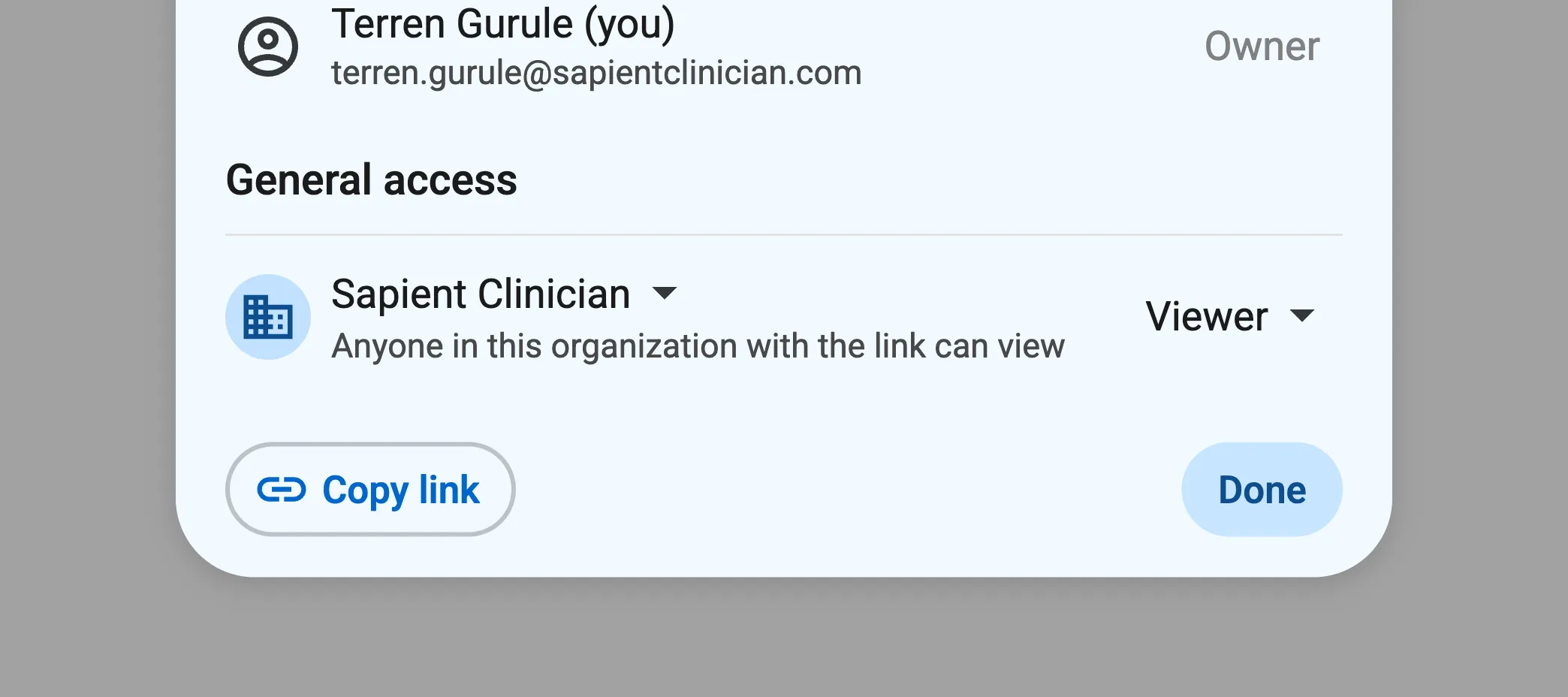
Click the “Copy link” button to get the link you can share with others — it’s the same as the link in the browser address bar.
Tip: Create a shared workspace using a shared folder
Section titled “Tip: Create a shared workspace using a shared folder”It can be convenient to have a shared workspace so that everyone can view and edit the same set of files.
To do this in Sapient Clinician, create a shared folder.
- Create a new folder by clicking the New folder button.
- Share the folder with your colleagues.
When you create new files within a shared folder, they’ll automatically be visible to everyone else.
Receiving shared files
Section titled “Receiving shared files”When a file is shared with you, you’ll receive an email if the sharer chose to notify you. Shared files also appear for the recipient in the “Shared with me” section.
To make a copy or add a shortcut to your “My scenarios” section, click the “Add to my scenarios” button.