
Feedback
Our AI grader automatically generates personalized feedback for each learner. Feedback is generated by taking into account:
- The scenario context (intended diagnosis, important physical and lab findings, etc.)
- The learner’s transcript, differentials, and assessment and plan
- The rubric(s) you added to the scenario/assessment
Feedback modes
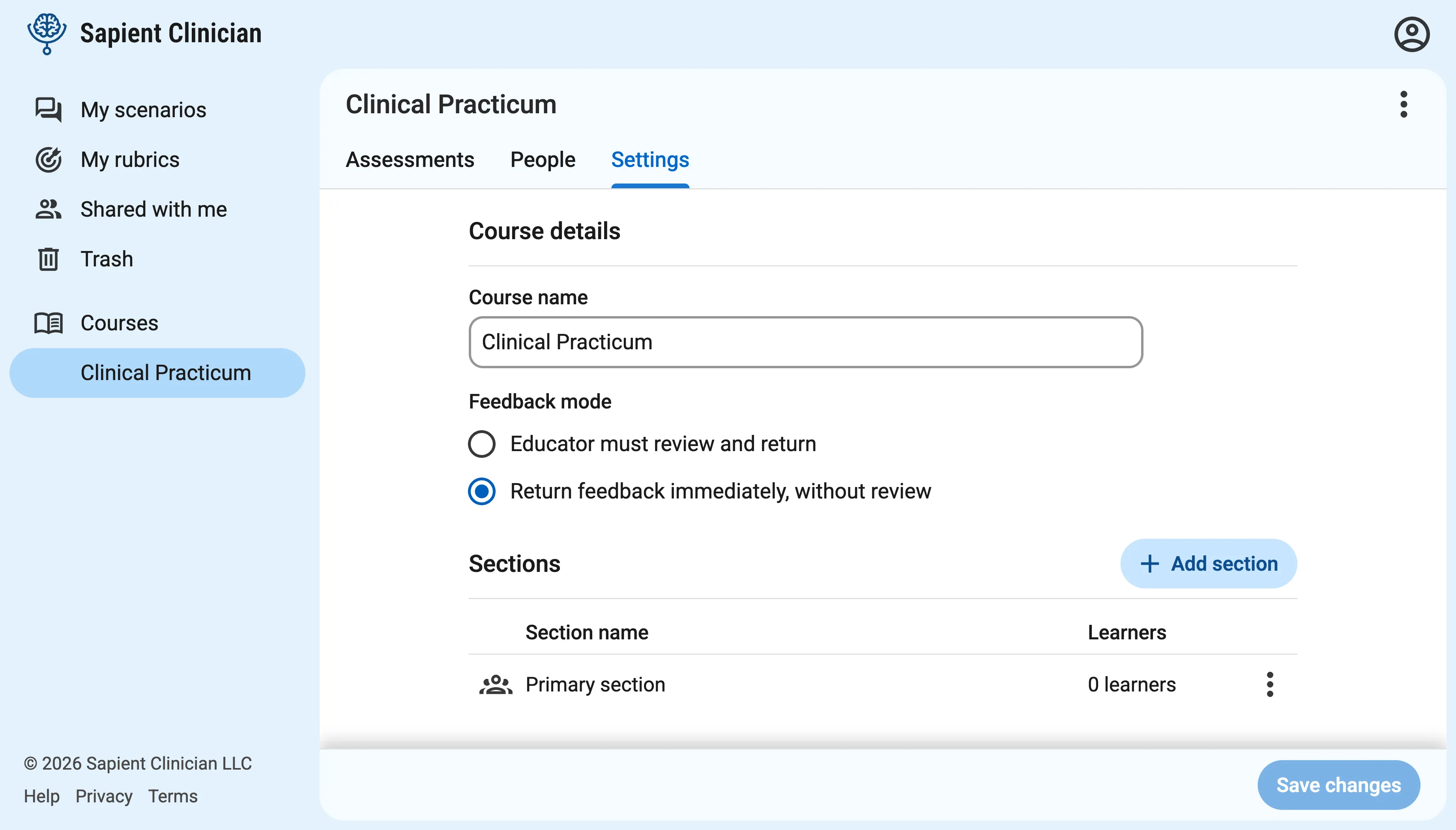
Section titled “Feedback modes”When you create a new course, you can choose between two modes for how feedback is returned to learners after completing an assessment.
- Educator must review and return: When a learner completes an assessment, they don’t see feedback right away. You, the educator, can review and edit feedback for all learners, and then click “Return” when you’re ready to release feedback one at a time or for all learners at once. Learners will receive an email with a link to view the feedback.
- Return feedback immediately, without review: Learners will see feedback immediately after completing an assessment. The educator doesn’t have an opportunity to review or edit first. (Feedback is returned immediately when running a scenario/assessment in preview mode.)
You can change this setting at any time within the Settings tab for a course.
Reviewing, editing, and returning feedback
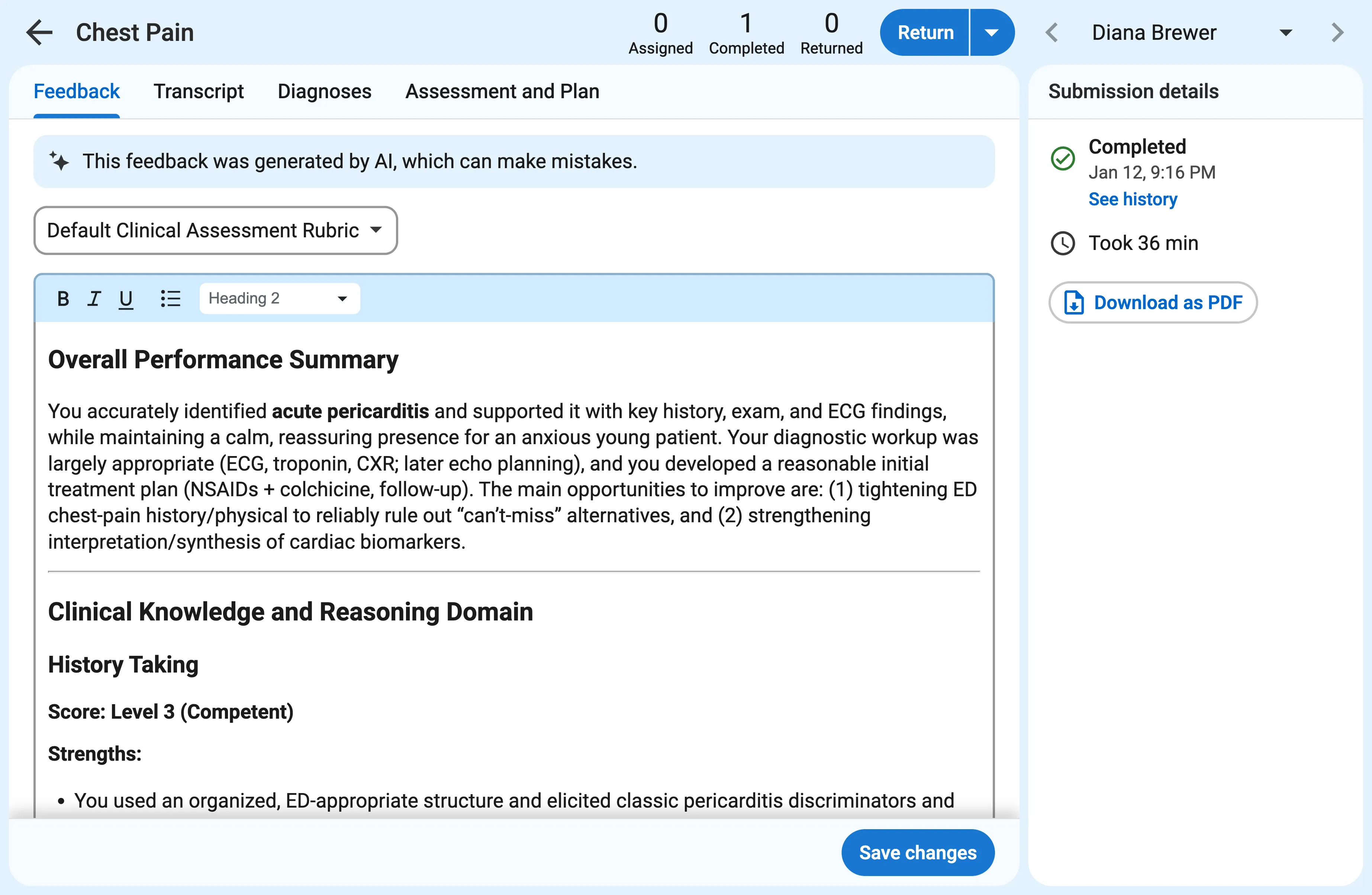
Section titled “Reviewing, editing, and returning feedback”Click on a submission in the “Submissions” tab of an assessment to review, edit, and return the feedback once it’s generated.
If there are multiple rubrics, a dropdown will appear above the feedback to let you switch between them.
Any instructors in the course can edit and return feedback. You can edit feedback even after it’s been returned to the learner.
If you have the feedback mode set to “Educator must review and return”, then click the “Return” button to return the submission after you’ve reviewed the feedback, or click the down arrow button next to it for the option to return all completed submissions at once.
Regenerating feedback
Section titled “Regenerating feedback”Sometimes you may want to make changes to a rubric, add another rubric, or swap one out, after feedback has already been generated for some learners.
When you change the rubrics on a scenario or assessment, an option to regenerate feedback will appear on all past submissions that had feedback generated before the change.
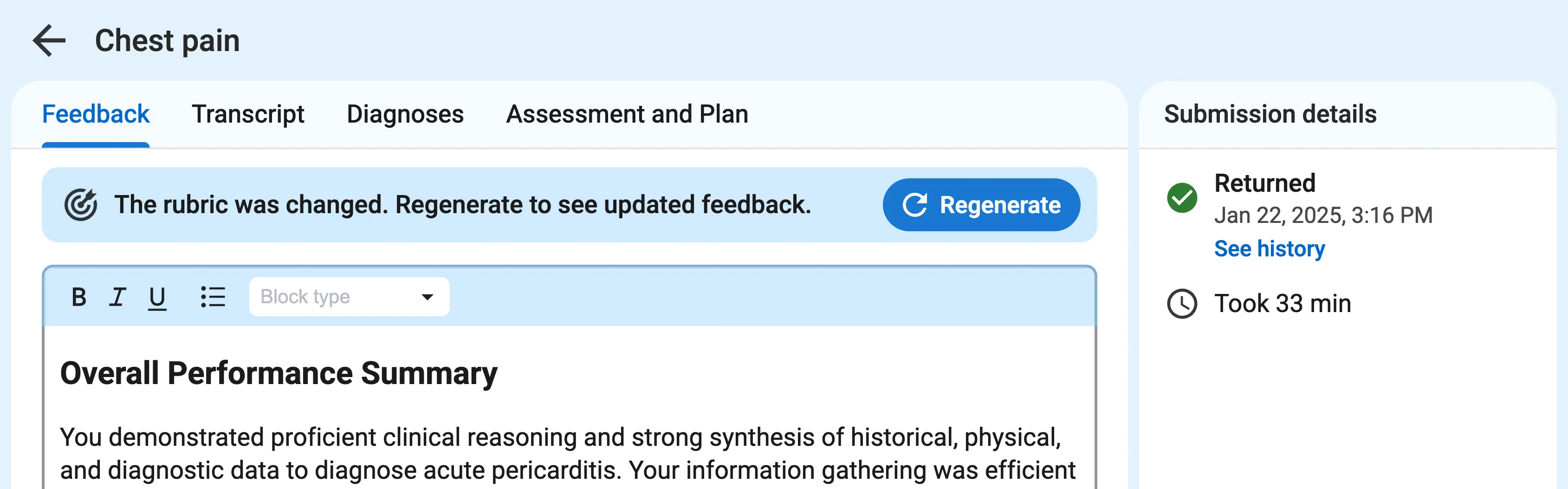
When you regenerate feedback, previous versions will still be available to instructors only from a dropdown menu. You can regenerate feedback at any time, even if it’s already been returned to learners.
Regenerating feedback works in preview mode, so it’s a good way to iterate and test improvements to your rubrics.