Collaborating with colleagues
This guide walks you through the ways to work together with your colleagues on Sapient Clinician.
Sharing scenarios and rubrics
Section titled “Sharing scenarios and rubrics”Share files to allow your colleagues to make edits or re-use the same scenarios or rubrics.
If you know how sharing works on Google Drive or OneDrive, then you already know how to share files on Sapient Clinician!
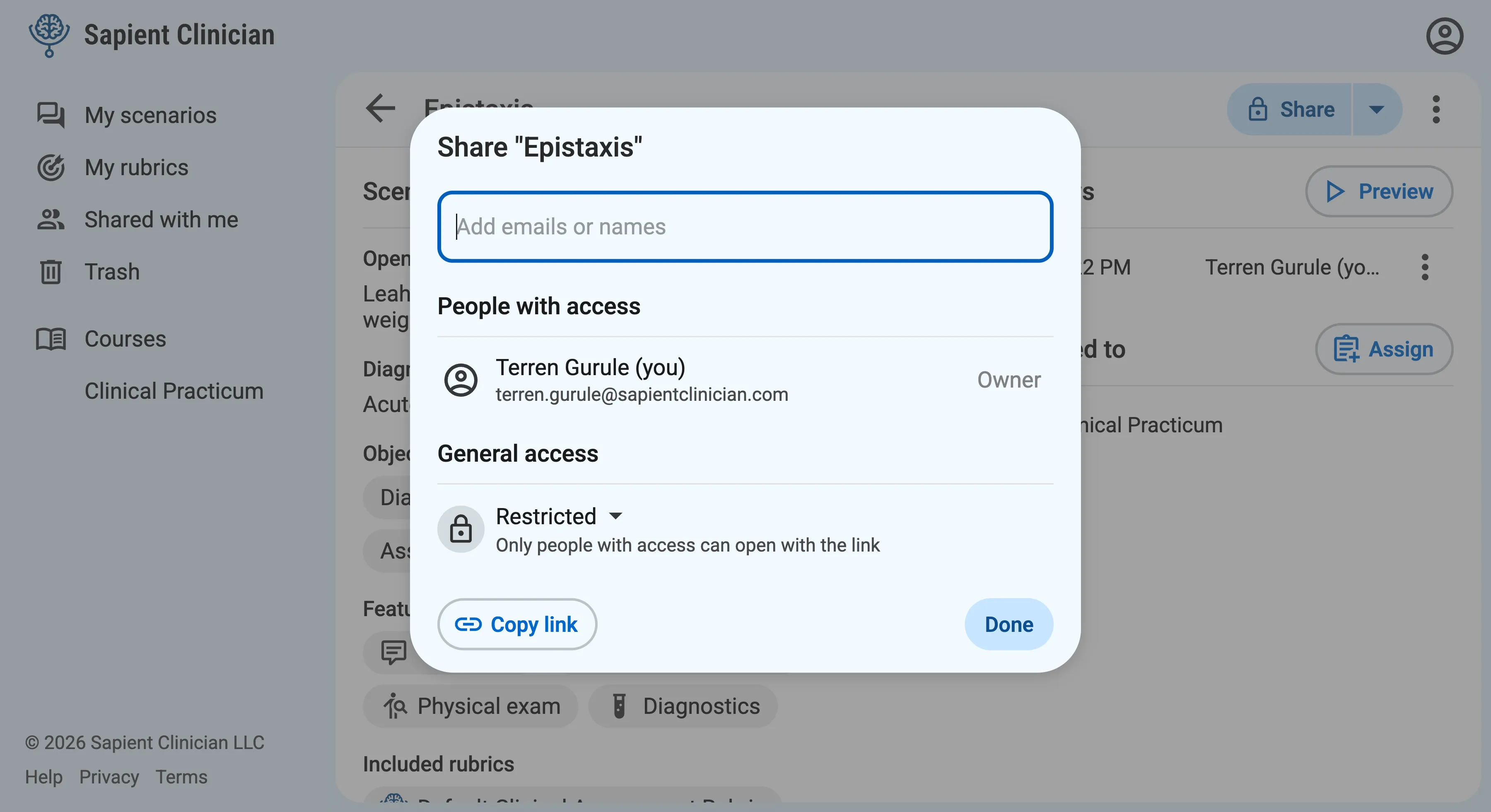
When viewing a scenario or rubric, click the Share button at the top right to open the sharing window. Here you can add your colleagues and manage who has access to the file.
Creating a shared folder
Section titled “Creating a shared folder”Instead of sharing a bunch of files one by one, it can be convenient to have a shared workspace so that everyone can view and edit the same set of files.
To do this in Sapient Clinician, create a shared folder.
- Create a new folder by clicking the New folder button.
- Share the folder with your colleagues.
When you create new files within a shared folder, they’ll automatically be visible to everyone else.
Adding co-instructors to a course
Section titled “Adding co-instructors to a course”Add co-instructors to allow colleagues to create new assessments, make edits, and review student submissions within a course.
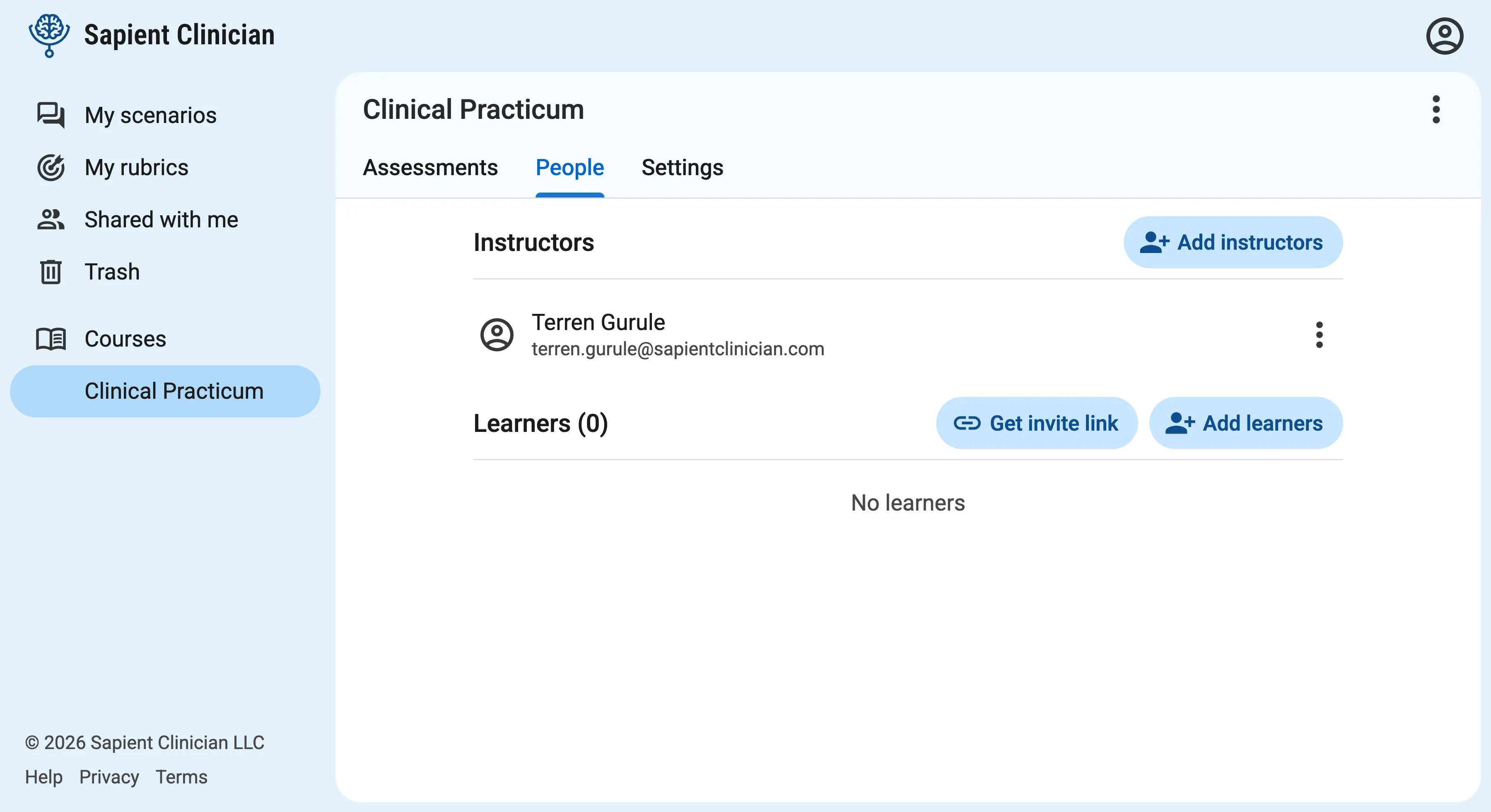
From the course page, click on the “People” tab to view all the students and instructors in the course.
Click the Add instructors button to add your colleagues.
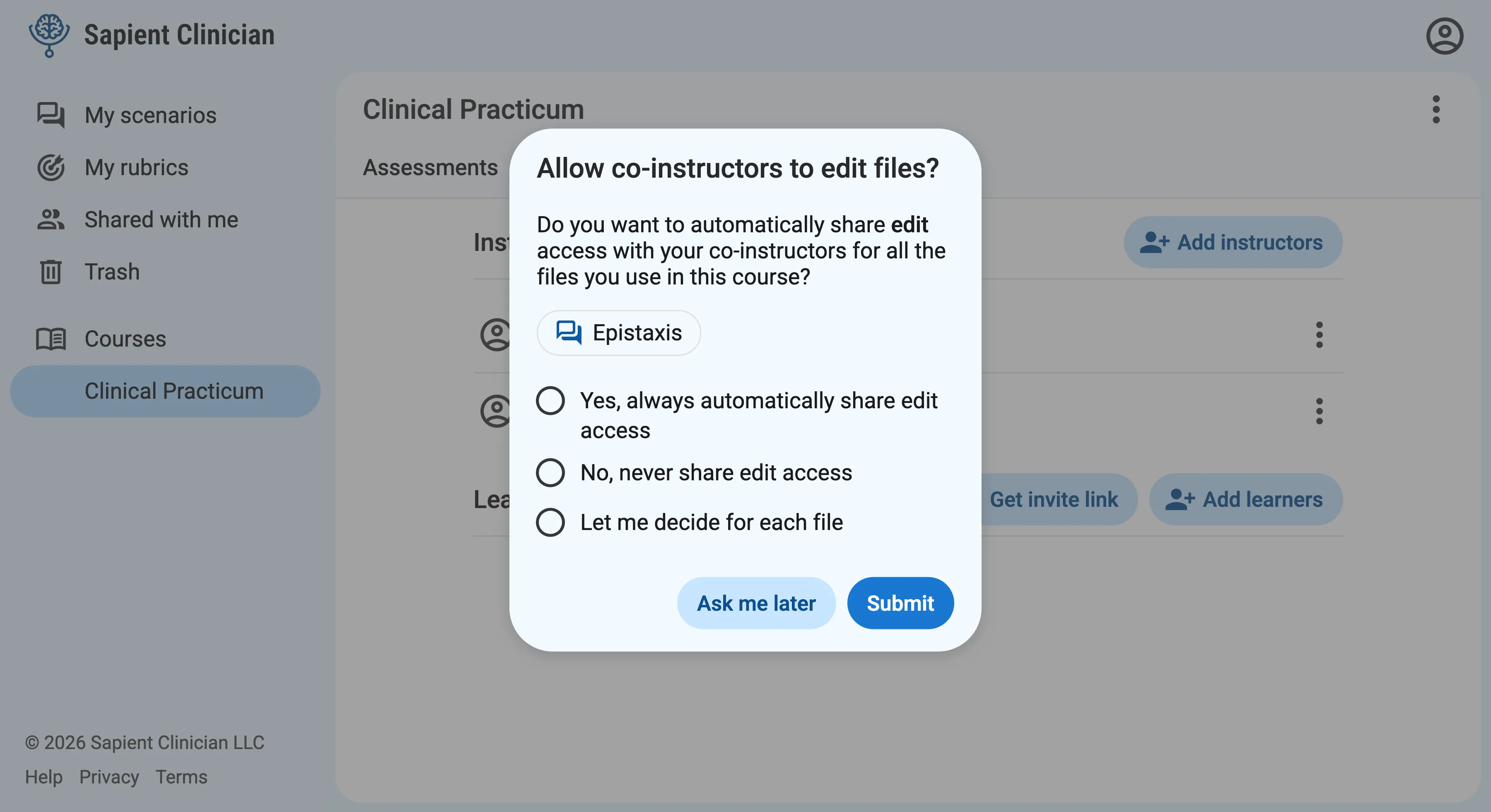
The first time you add a co-instructor, we’ll ask if you want to automatically share edit access to all the scenario and rubric files you use in the course.