
New ways to share and organize your files
Organize files into folders
Now you can create folders to keep your scenarios and rubrics organized. Click the “New folder” button to create one, and right click files for the option to move them.
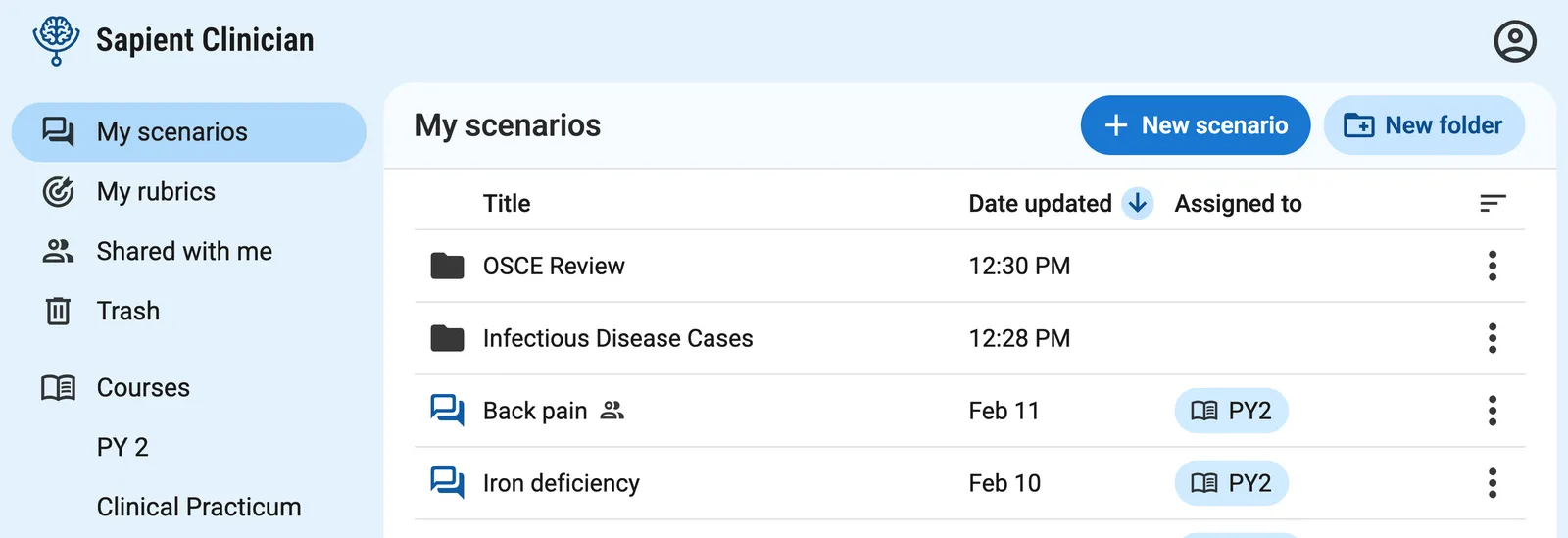
Share files and folders
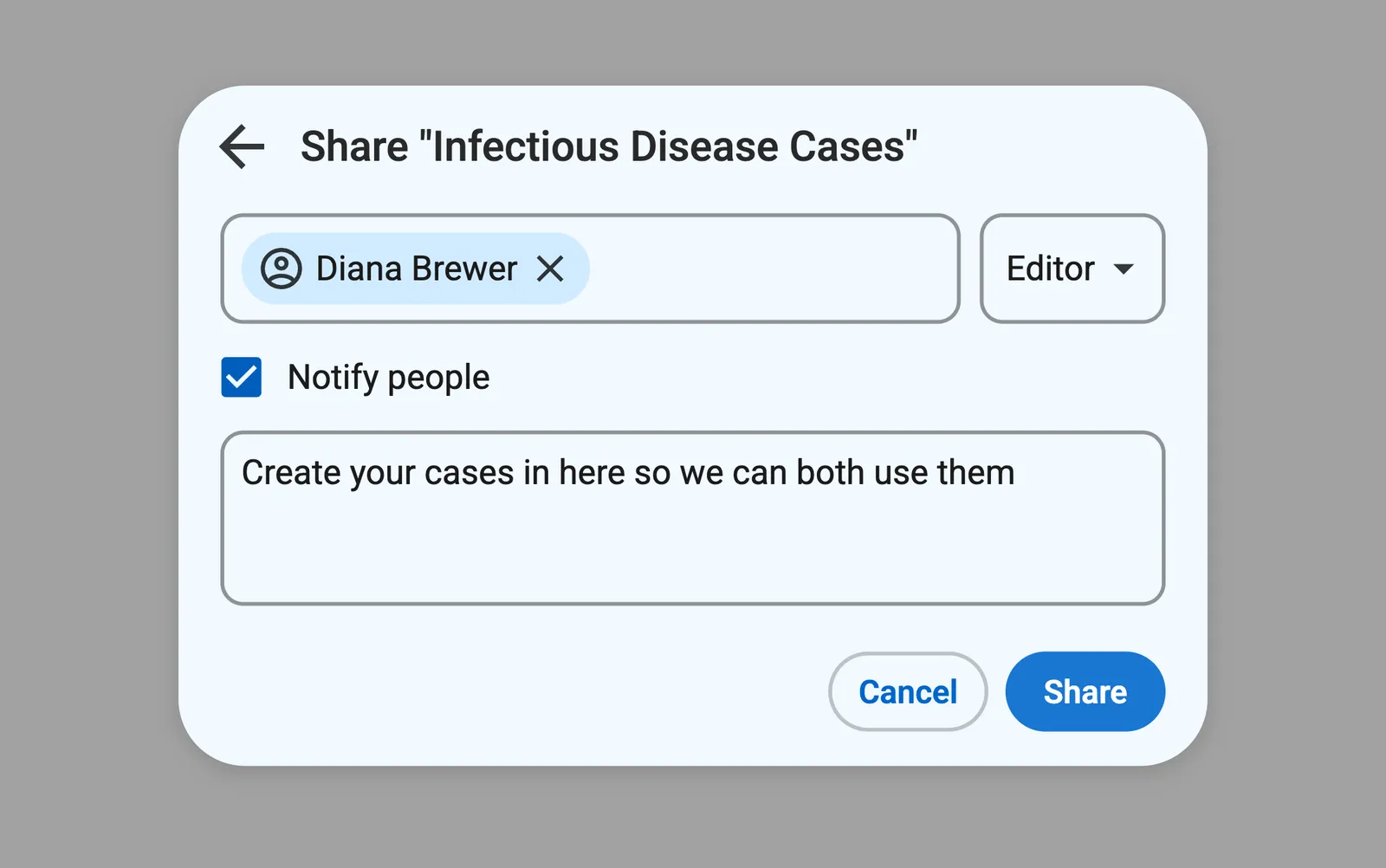
We’re making it easier to collaborate with colleagues. Click “Share” on a scenario or rubric to send access to others, so you can all work with the same files. You can also create a shared folder to give you and your colleagues a place to work together.
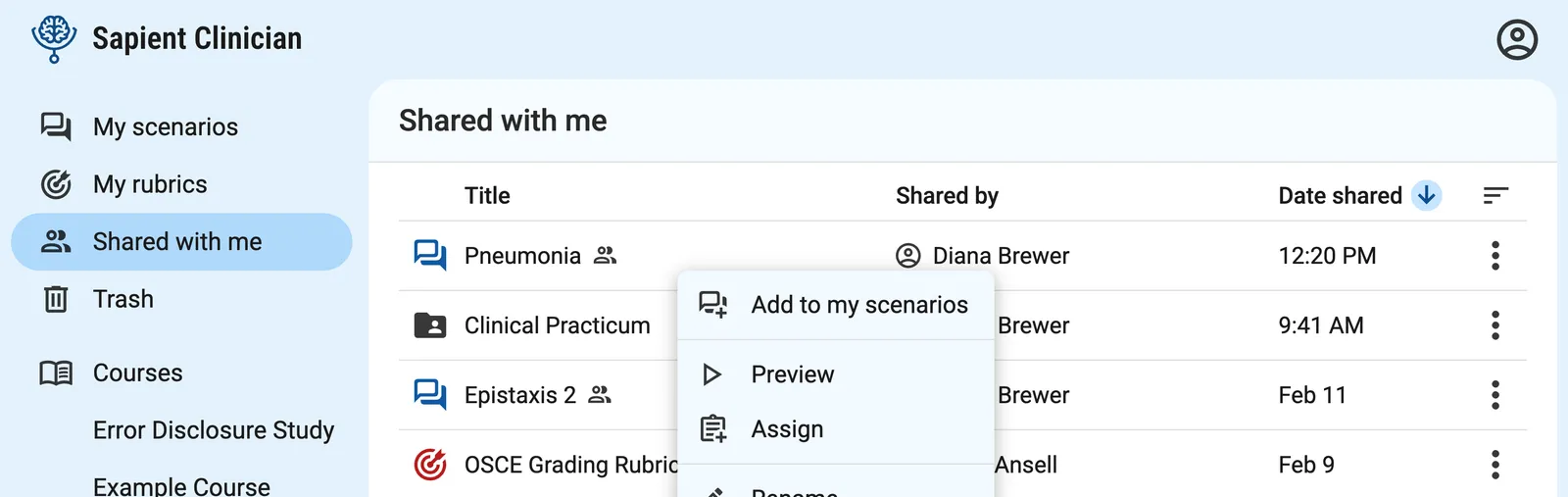
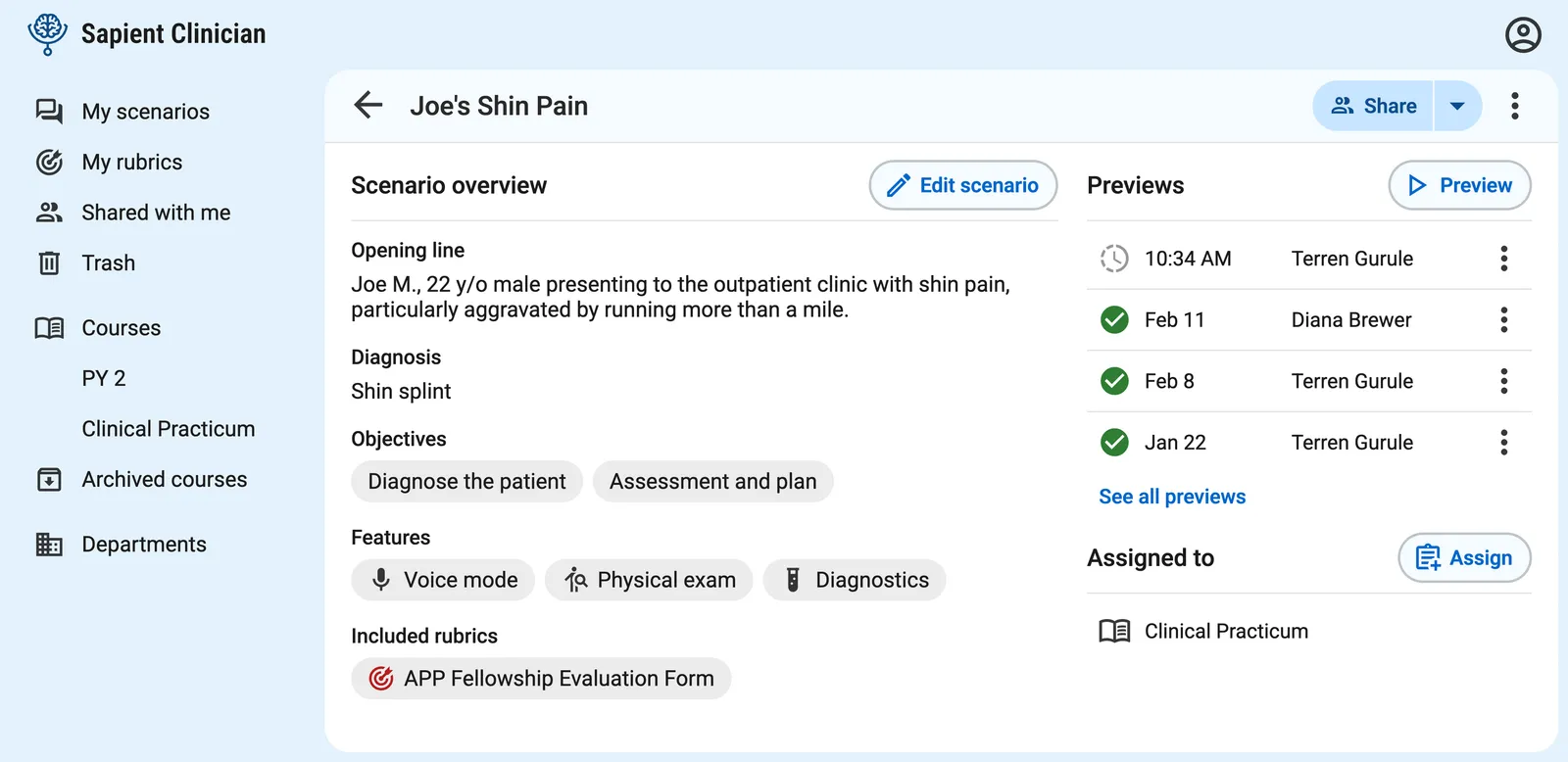
Shared files appear for the recipient in the new “Shared with me” section.
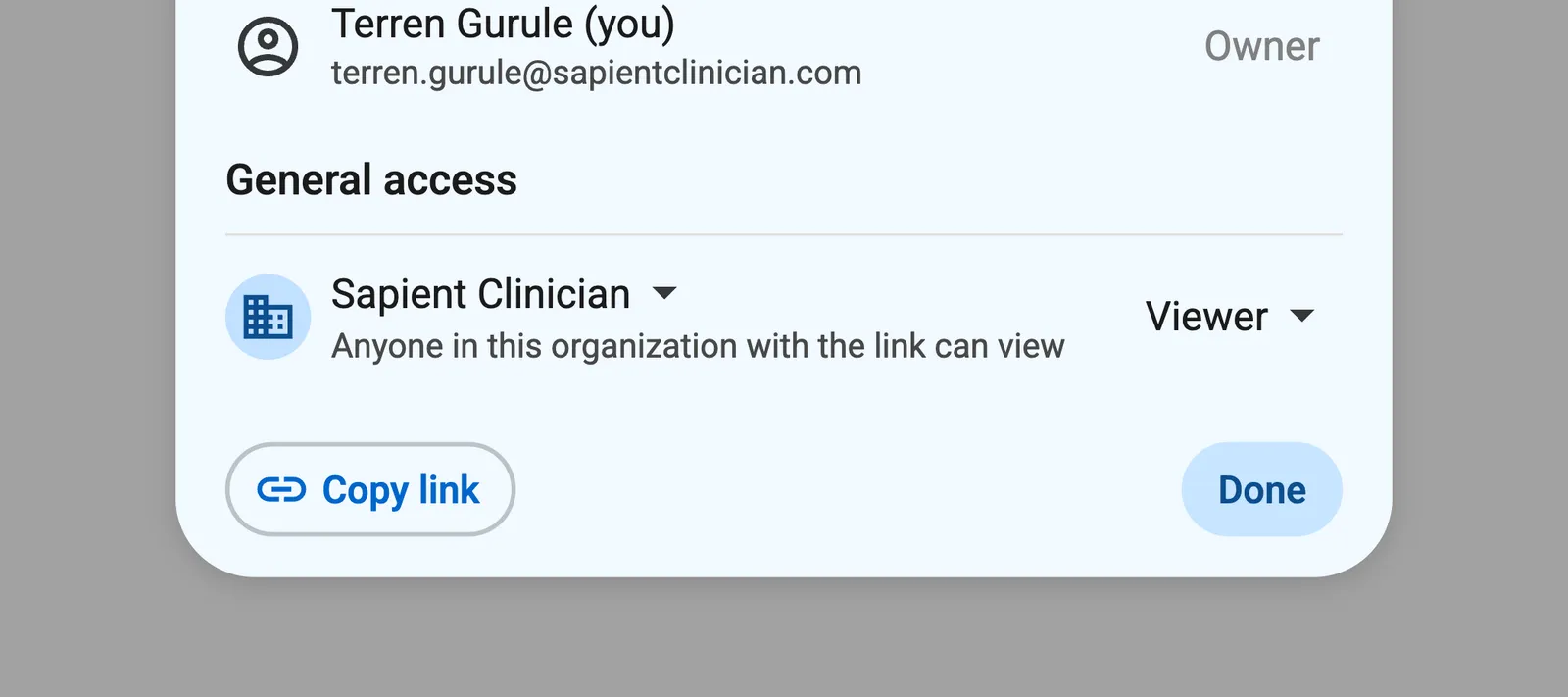
In addition to sharing with specific people, you can also now share access with everyone in your organization who has the link.
Review past preview conversations
When you click on a scenario, you’ll now be taken to a new scenario overview page. Here you’ll find a list of your past preview conversations, so you can go back to reference them or copy a link to the transcript to share with someone else. The past preview conversations are visible to everyone who the scenario is shared with.
Regenerate feedback after changing rubrics
Sometimes you might want to revise a rubric after reviewing case feedback. When you change the rubrics on a scenario or assessment, you can now click “Regenerate” to see updated feedback.
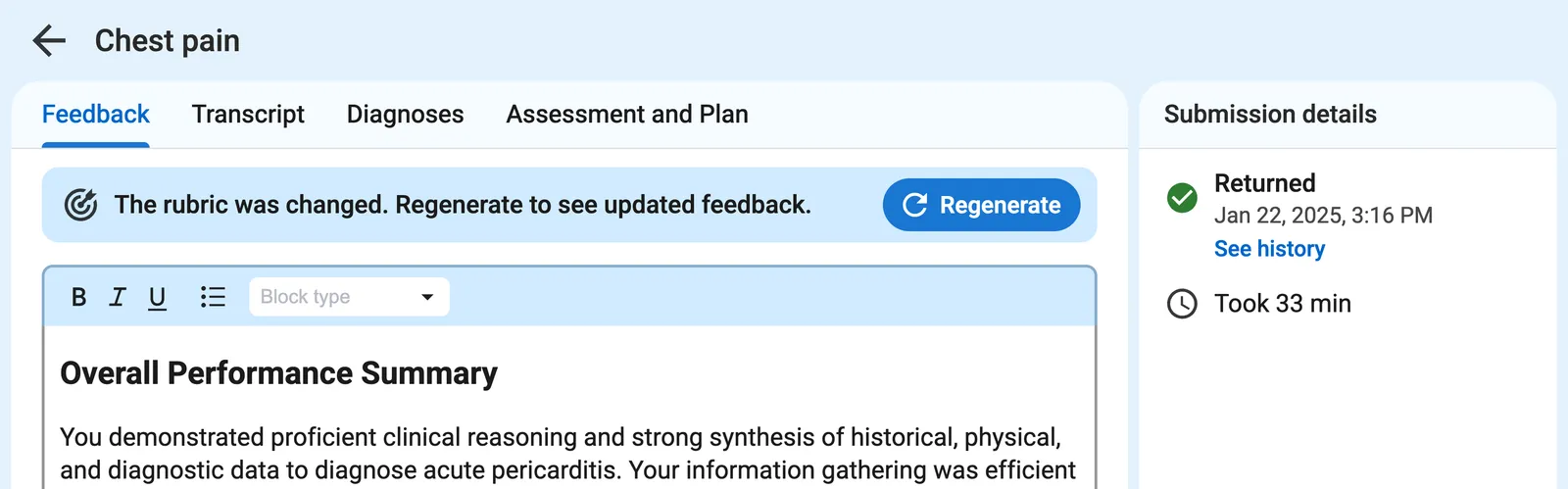
When you regenerate feedback, previous versions will still be available from a dropdown menu.